Exatype: HIV (Sanger): User Manual
1: Account and Organisation
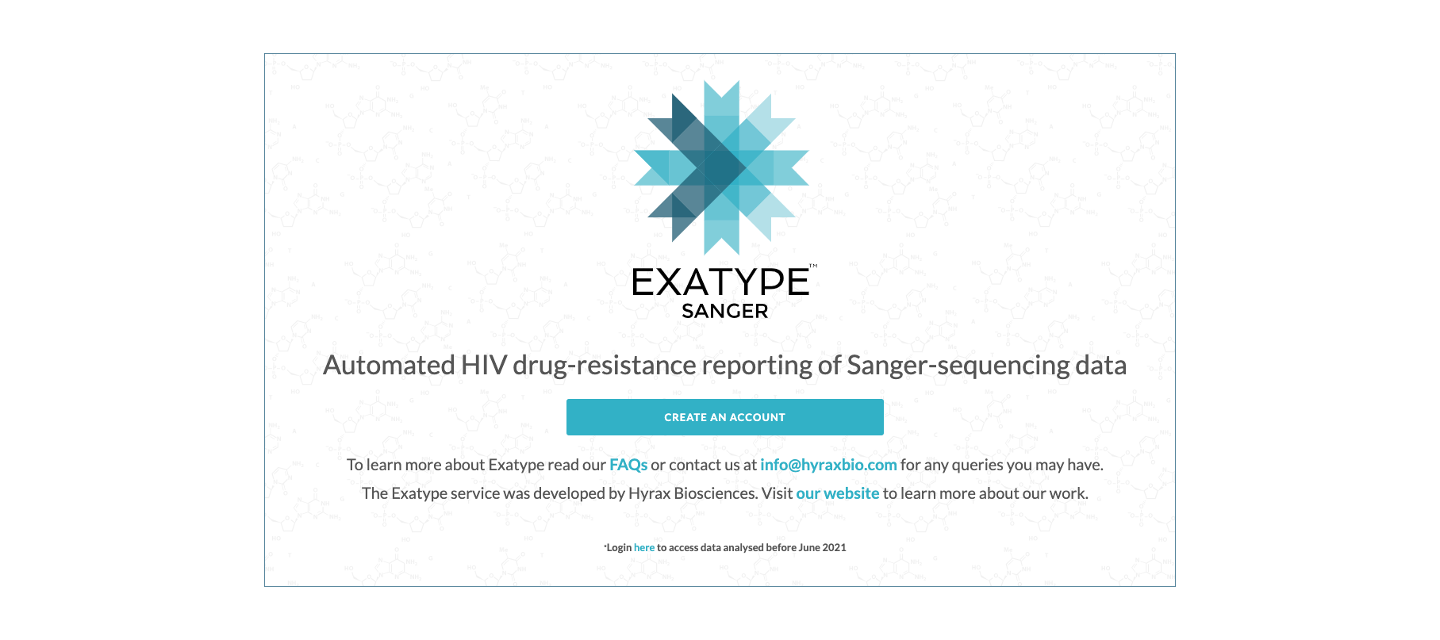
To run HIV (Sanger) analyses using Exatype, you need to create an account at: https://sanger.exatype.com/
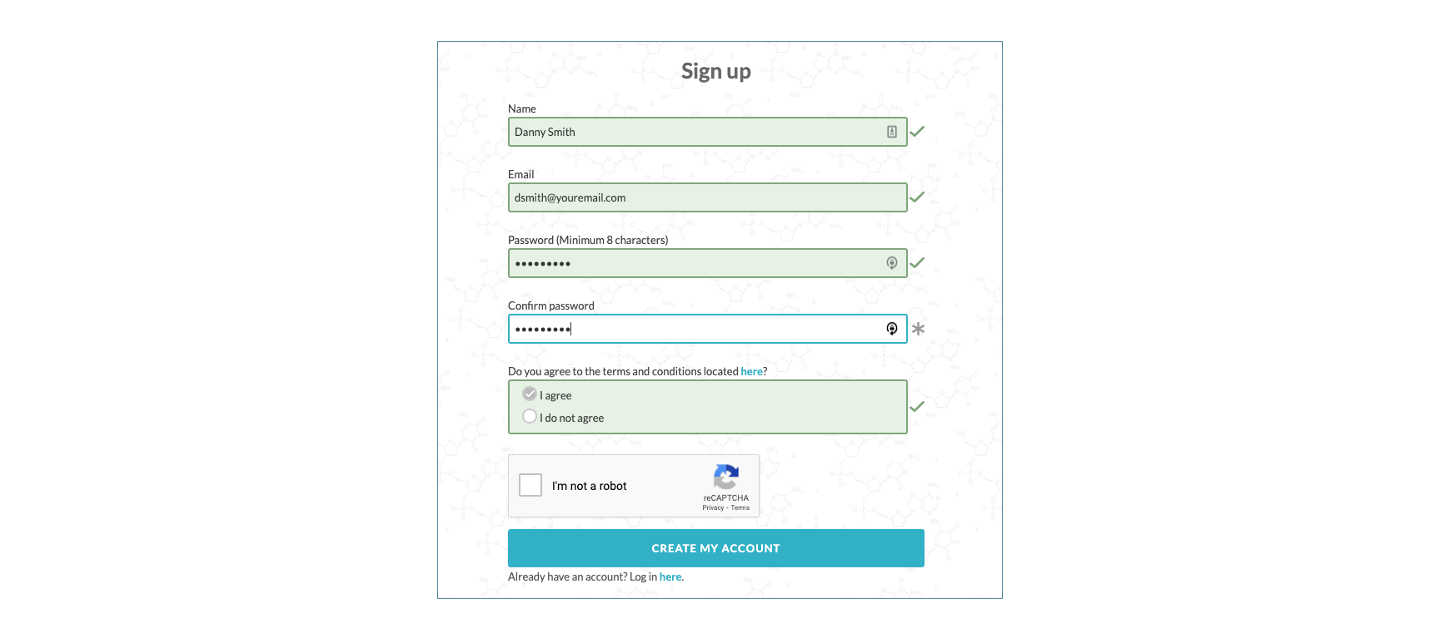
The sign-up process is straightforward:
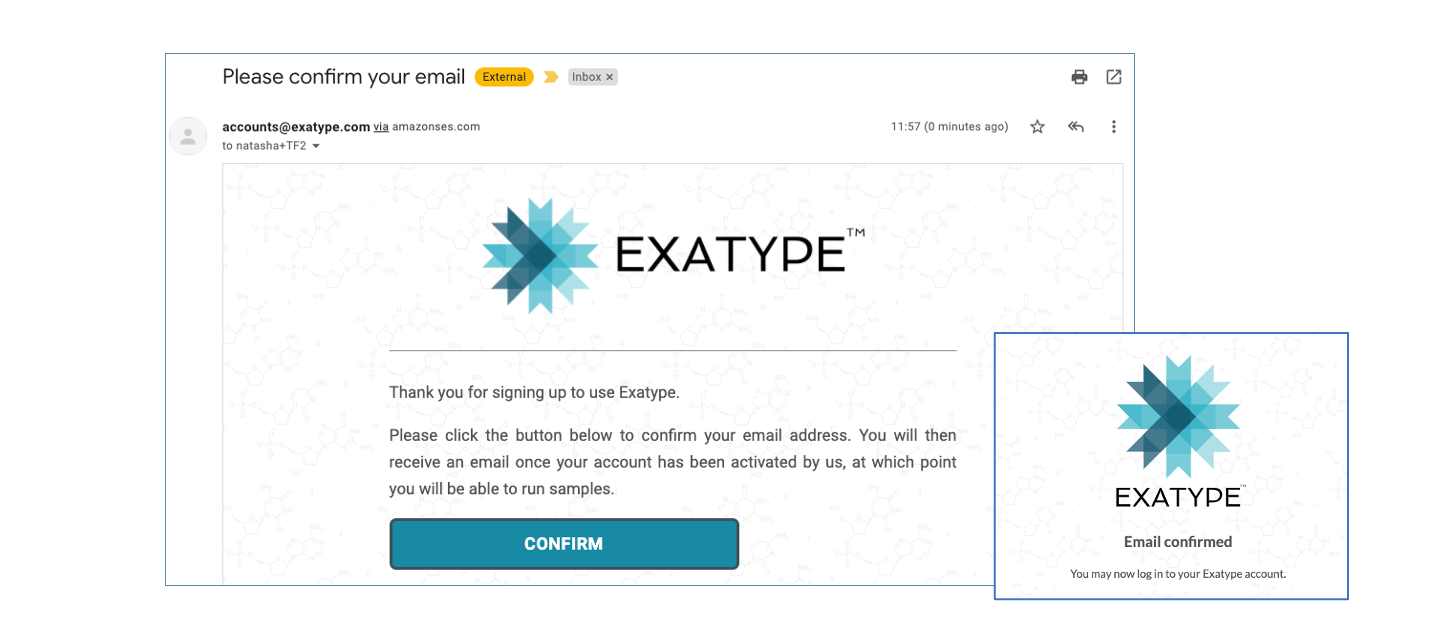
After signing up, you will receive an email asking you to confirm your email address and registration.
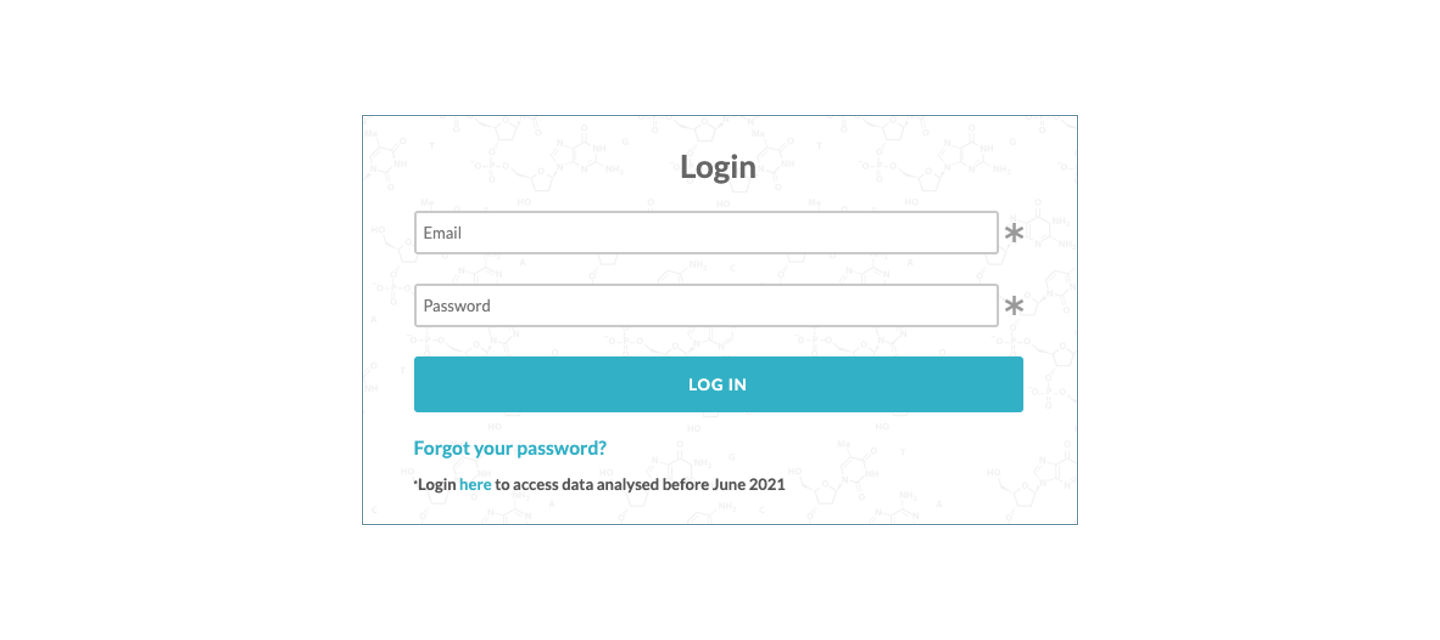
Next, you can log in to your account at https://sanger.exatype.com/login
The first time you log in, you will be asked to create an organisation. This allows us to verify that you are a customer of Thermo Fisher Scientific. Please see /faqs/sanger-hiv-thermofisher/#how-do-i-sign-up-for-an-exatype-hiv-sanger-account-and-what-information-is-needed if you are unsure how to complete the organisation information.
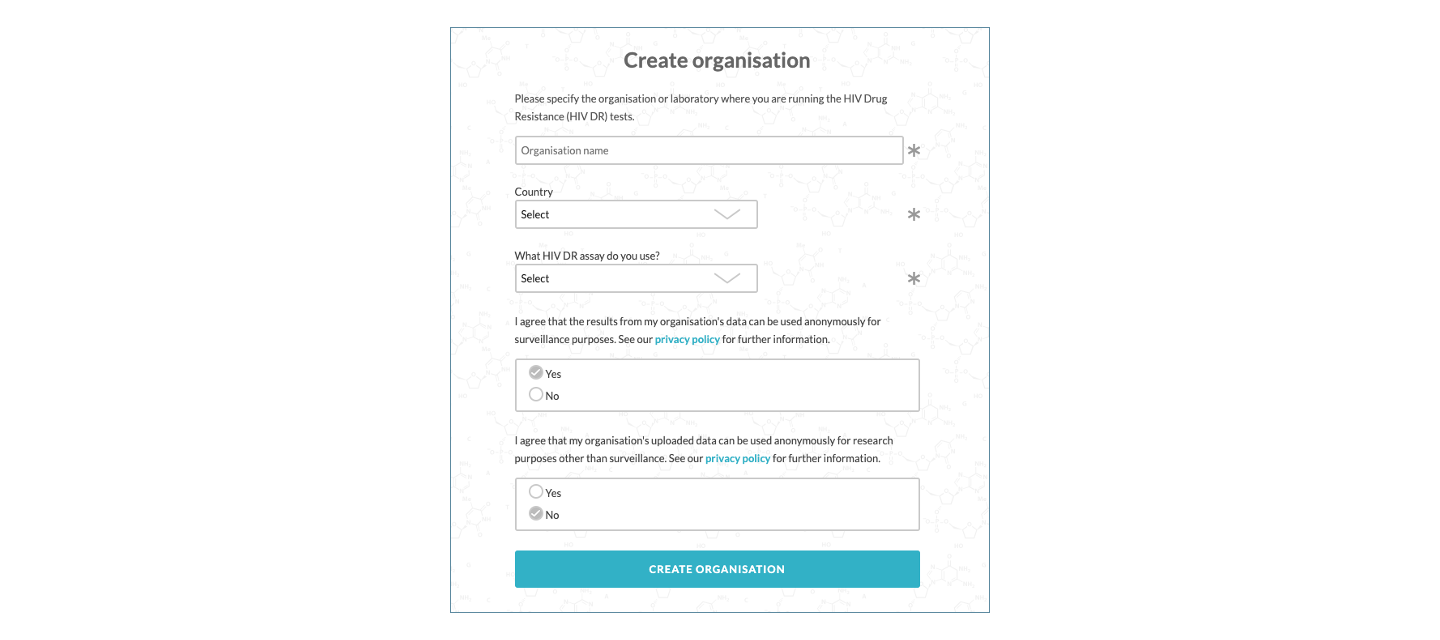
After you click Create organisation, the new organisation needs to be approved. The approval process usually takes no more than 1-2 work days. Please get in touch at sanger@hyraxbio.com if you need to access your account within a short turnaround time.
You will receive an email from us confirming that your organisation has been verified and you can log in (https://sanger.exatype.com/login) and run analyses.
This completes the sign-up process!
2: Dashboard and example dataset
After logging in, you will be redirected to the Dashboard.
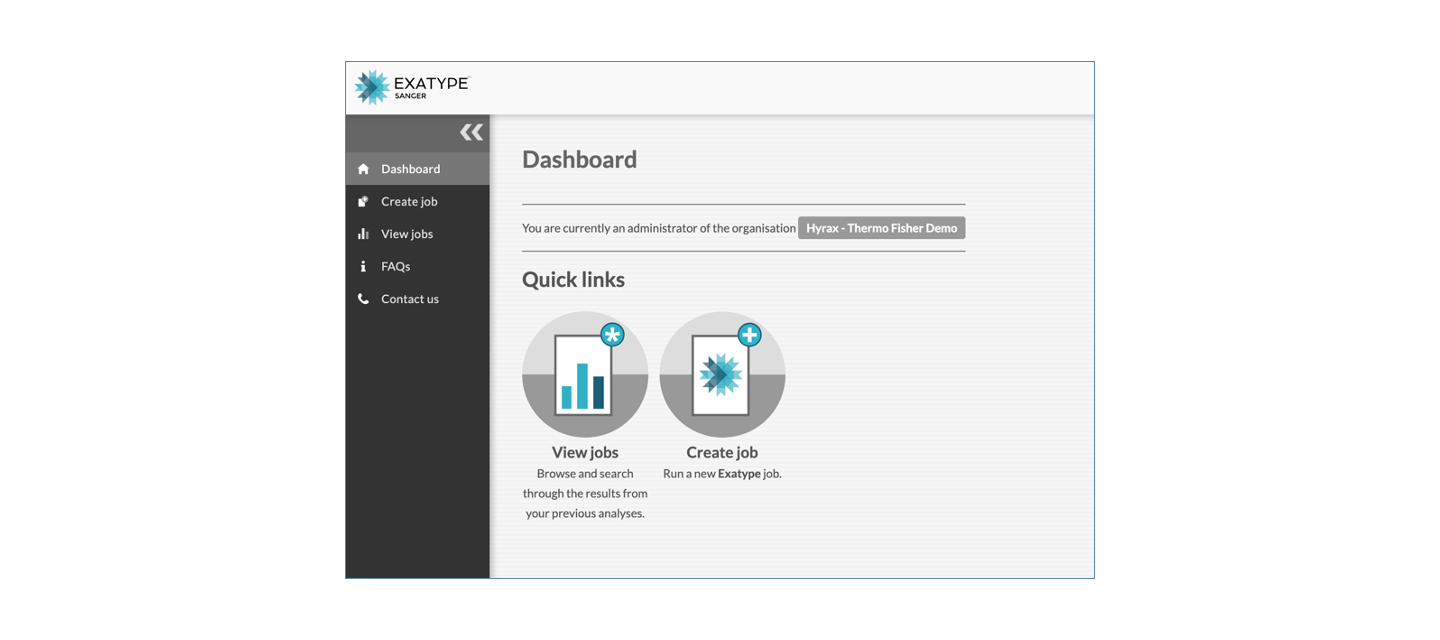
The Dashboard provides an overview of the available features and functions for analysing and reviewing HIV (Sanger) sequencing data. It includes basic information about your account as well as quick links to creating a new analysis, and viewing your previously analysed files. The Create job, View jobs options, a link to these FAQs, and a Contact Us button are shown in the left panel. If you are an administrator, options on the top right under the organisation name include Invite users, View invitations, and Org users (members of the organisation) will be available.
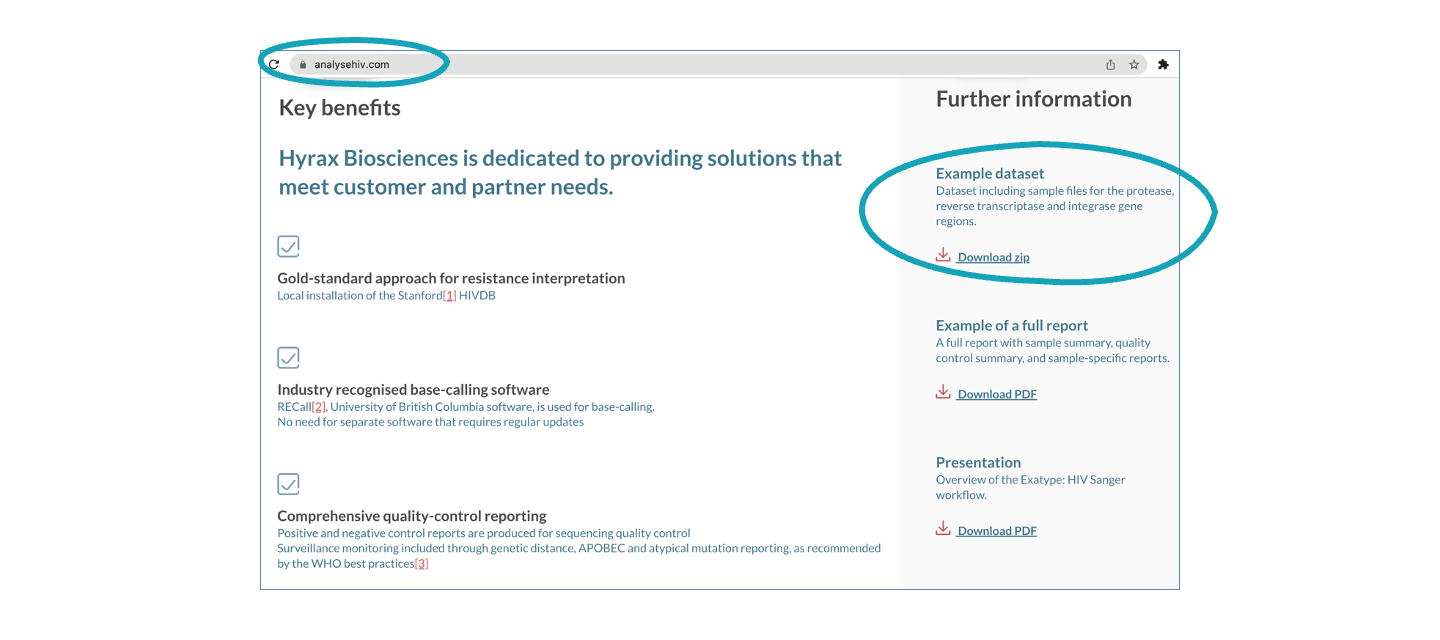
To illustrate the workflow, a step by step example is provided; to follow along, please download the “Example dataset” at analyzehiv.com.
3: Create and analyse a new project/job
To run a new analysis, select the Create job option and follow the listed steps:
Job details
Select a Job name. The Job name may include any alphanumeric characters as well as . [ ] ( ) # _ - ~ & and '' (whitespace characters).
The following characters, as well as non-printable characters, are disallowed: \ / : * ? " < > |.
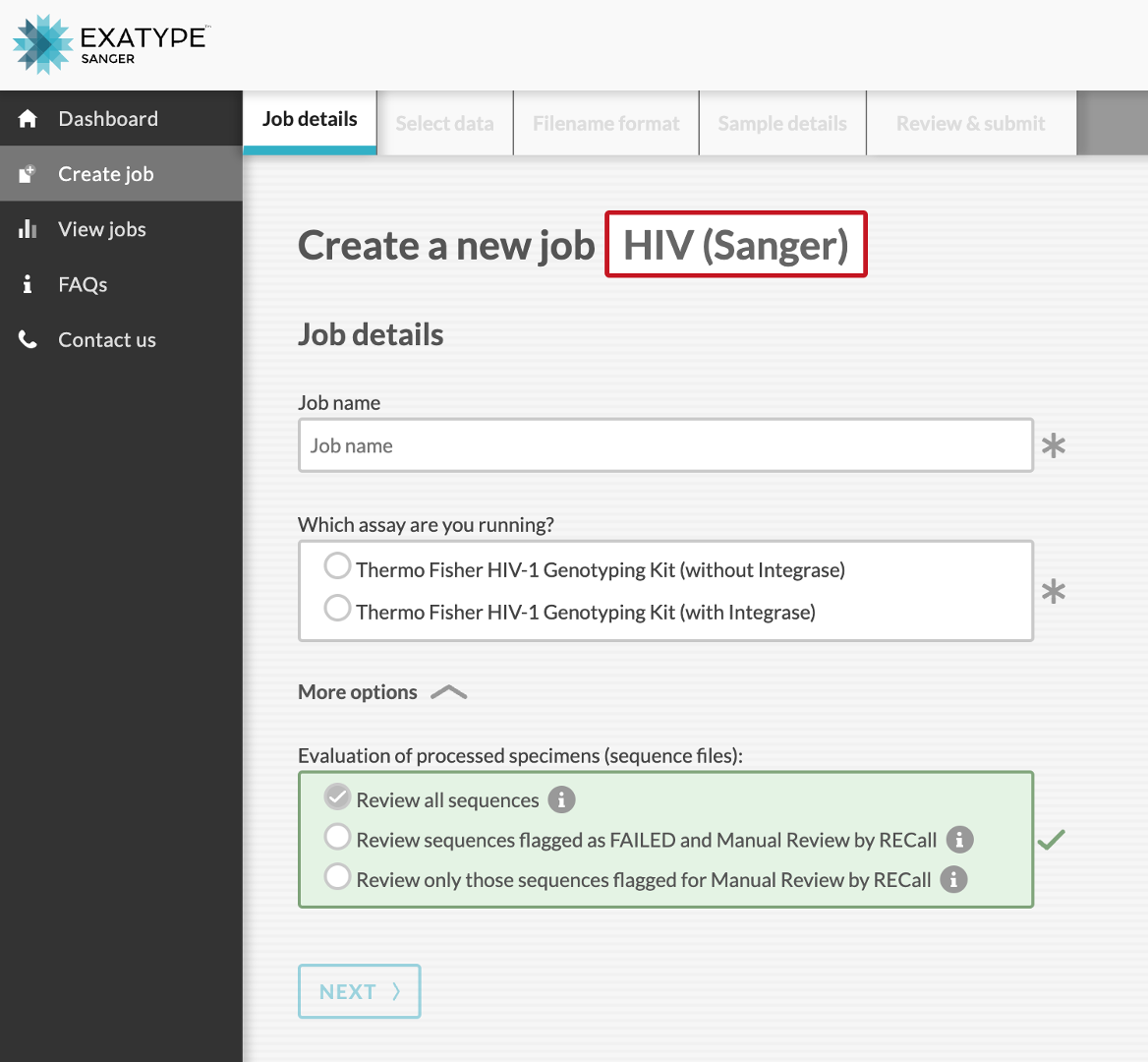
There are two Thermo Fisher HIV drug-resistance testings assays: Thermo Fisher HIV-1 Genotyping Kit (without Integrase), which includes the protease and reverse transcriptase regions; and Thermo Fisher HIV-1 Genotyping Kit (with Integrase), which includes protease, reverse transcriptase as well as integrase regions. It is important to select the correct assay under Which assay are you running? to ensure that the downstream quality control analysis is processed correctly. Importantly, if you used the Thermo Fisher HIV-1 Genotyping Kit (with Integrase) but only amplified and sequenced the protease and reverse transcriptase regions, you should select the with Integrase assay.
Under the More options menu (see image below) you are able to select:
- Review all sequences: RECall-labelled PASSED (green), FAILED (red), and Manual Review (orange) sequences.
- Review sequences flagged as FAILED and Manual Review by RECall: RECall-labelled FAILED (red) and Manual Review (orange) sequences.
- Review only those sequences flagged for Manual Review by RECall: RECall-labelled Manual Review (orange) sequences only.
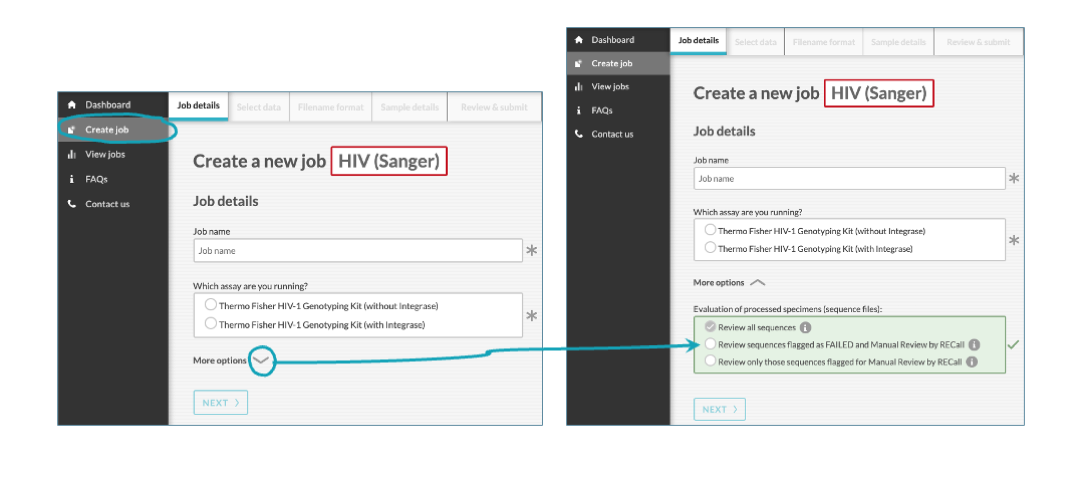
Note that the option, Review all sequences, is selected by default. Please get in touch (sanger@hyraxbio.com) if you want this default changed for your Organisation.
Once the Job details tab is complete, click NEXT.
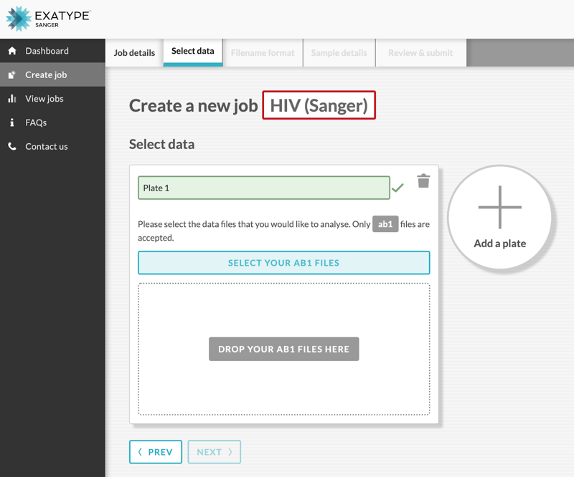
At this step, you need to Select data and upload your .ab1 sequence files. Either drag and drop the sequence files from your file browser, or select Choose your sequence data files and navigate to the directory where your files are located.
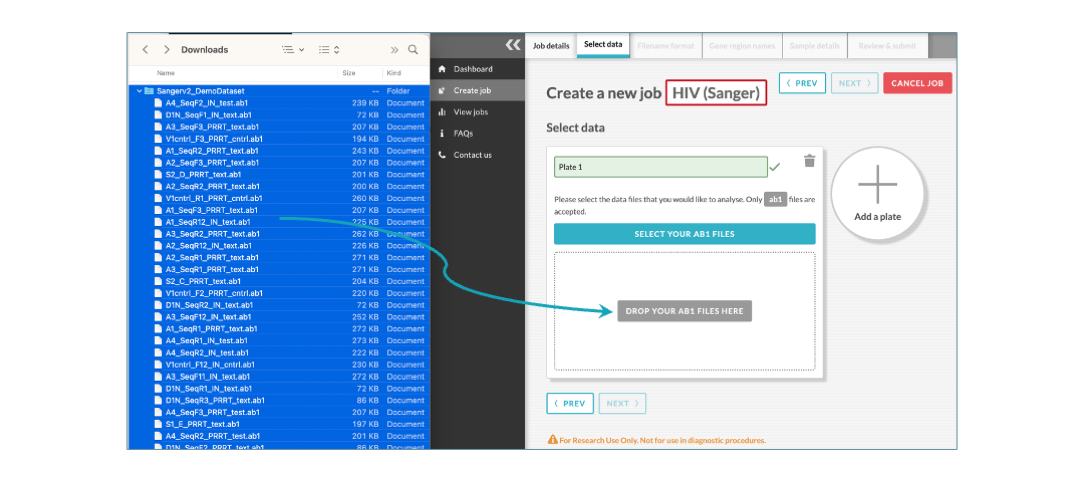
You can add one or more plates for each job. To add additional plates, click on the plus button next to the first plate. While default plate names are created, you can rename each plate by typing in the the Name field.
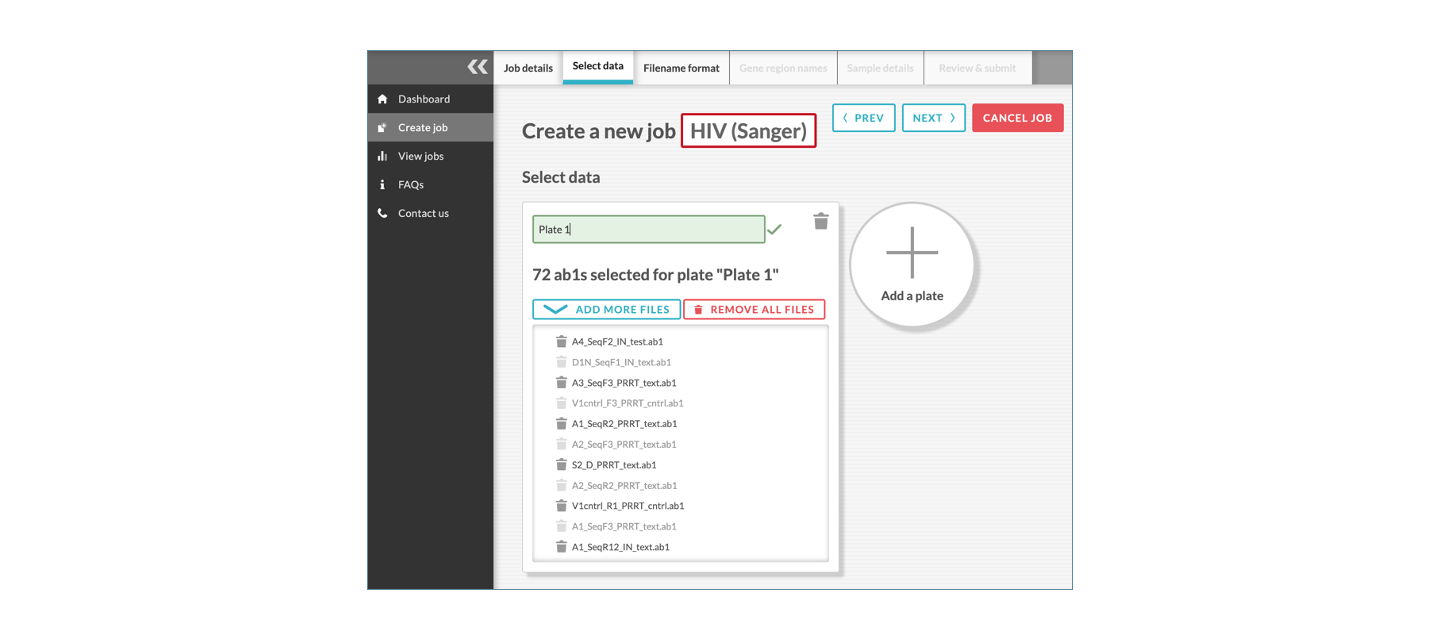
After adding the .ab1 files, click NEXT. At this step, you are asked to set the filename format.
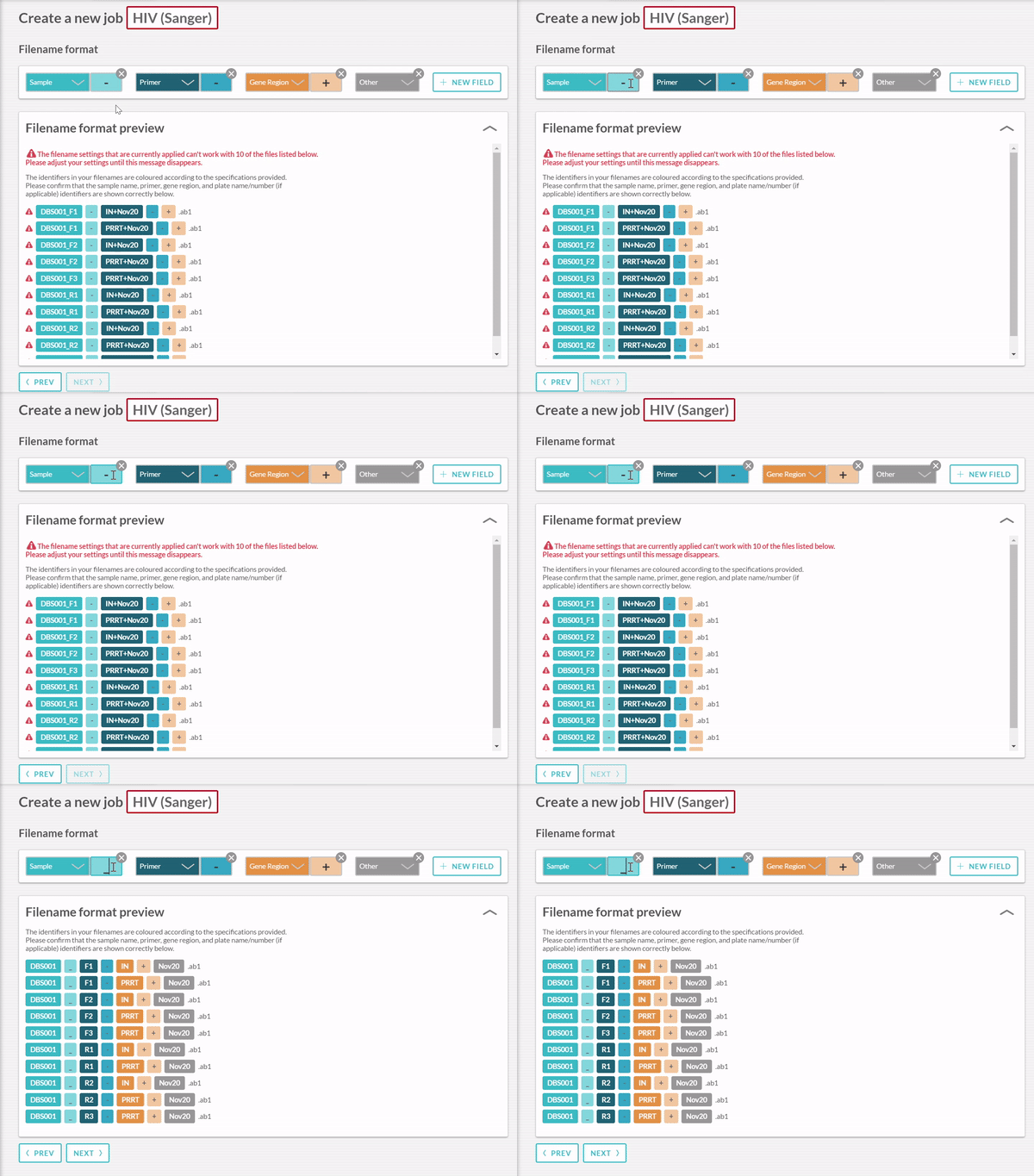
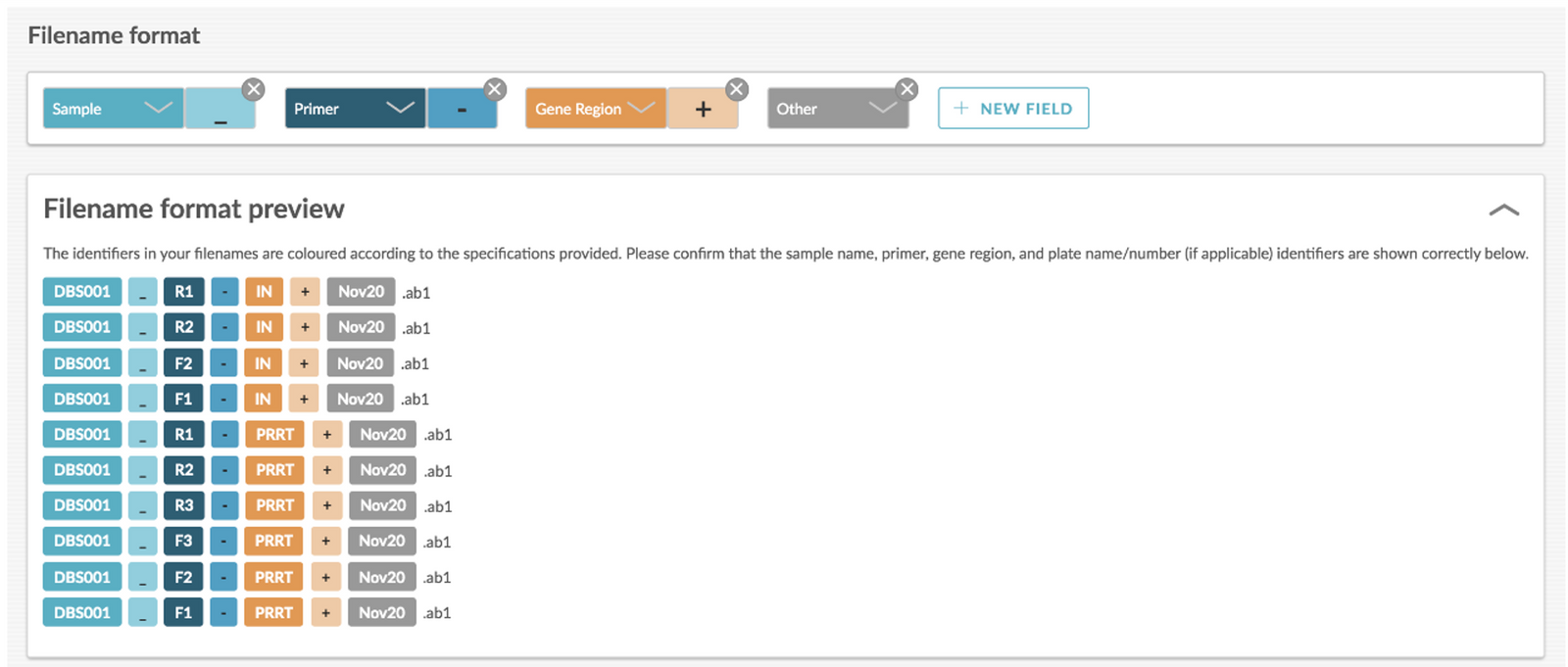
When a group of samples (each represented by a number of .ab1 files, with one ab1 file per amplicon) are uploaded, they are automatically grouped together. As per convention, the filename will contain information on the sample name, primer detail, gene region (protease + reverse transcriptase and/or integrase), any other information, and optionally plate identifiers. On the Filename format tab, you can define your delimiters by typing in the character field (default first delimiter after the Sample field is _). The delimiters separate the information in your filenames. See What are the sample naming conventions? and the example below for further clarity.
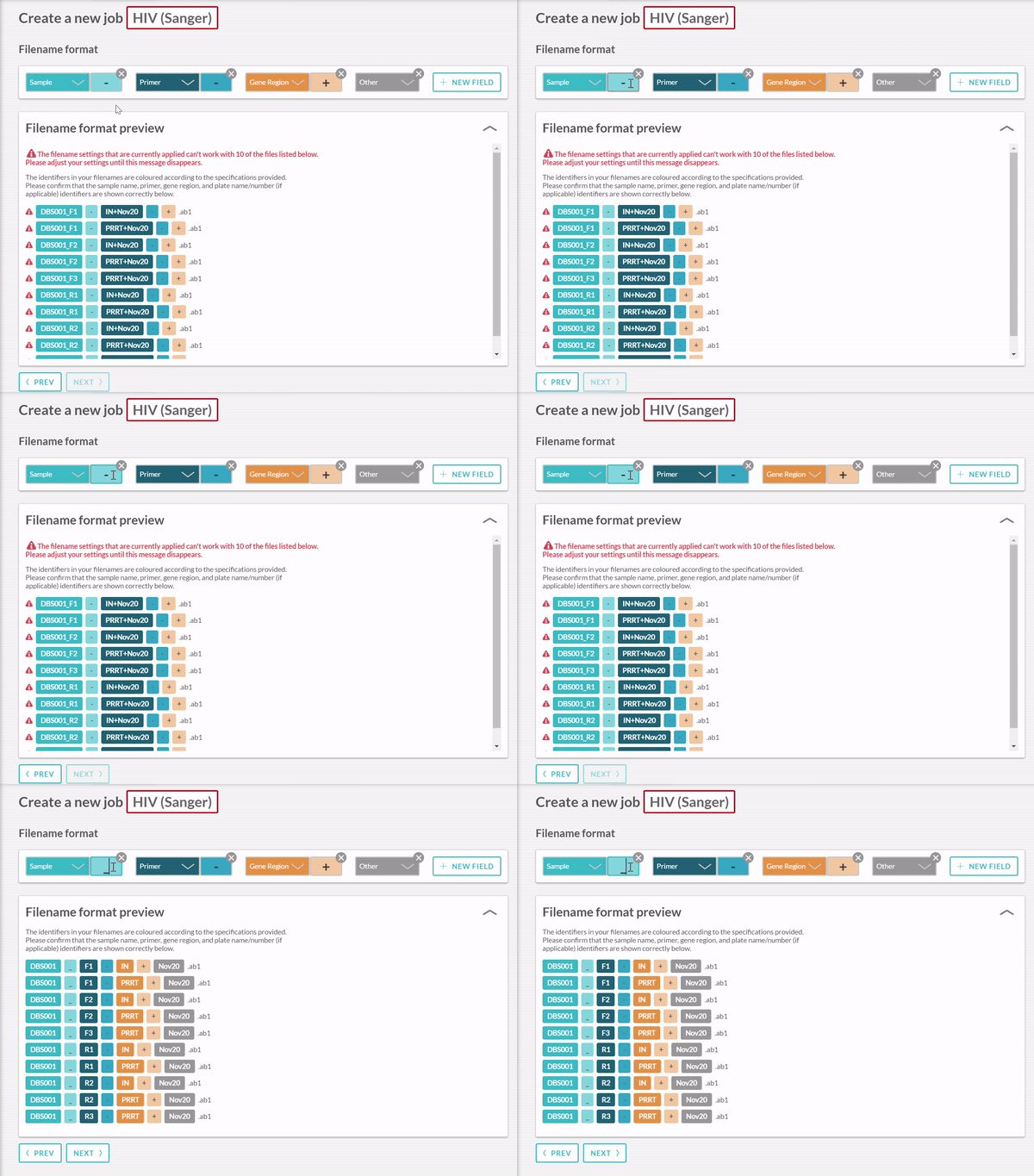
In this example dataset, the Primer detail is not separated from the Gene region information.
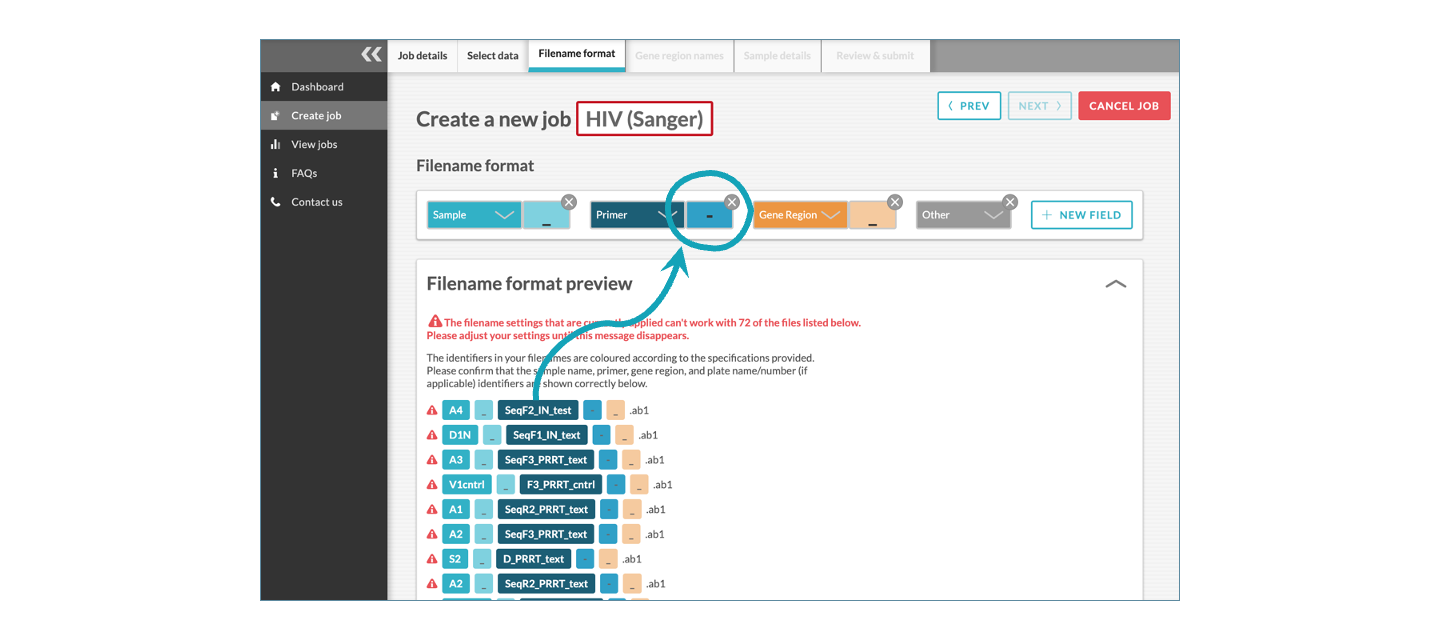
To correct this, change the delimiter from ’-’ (dash/hypen) to ’_’ (underscore).
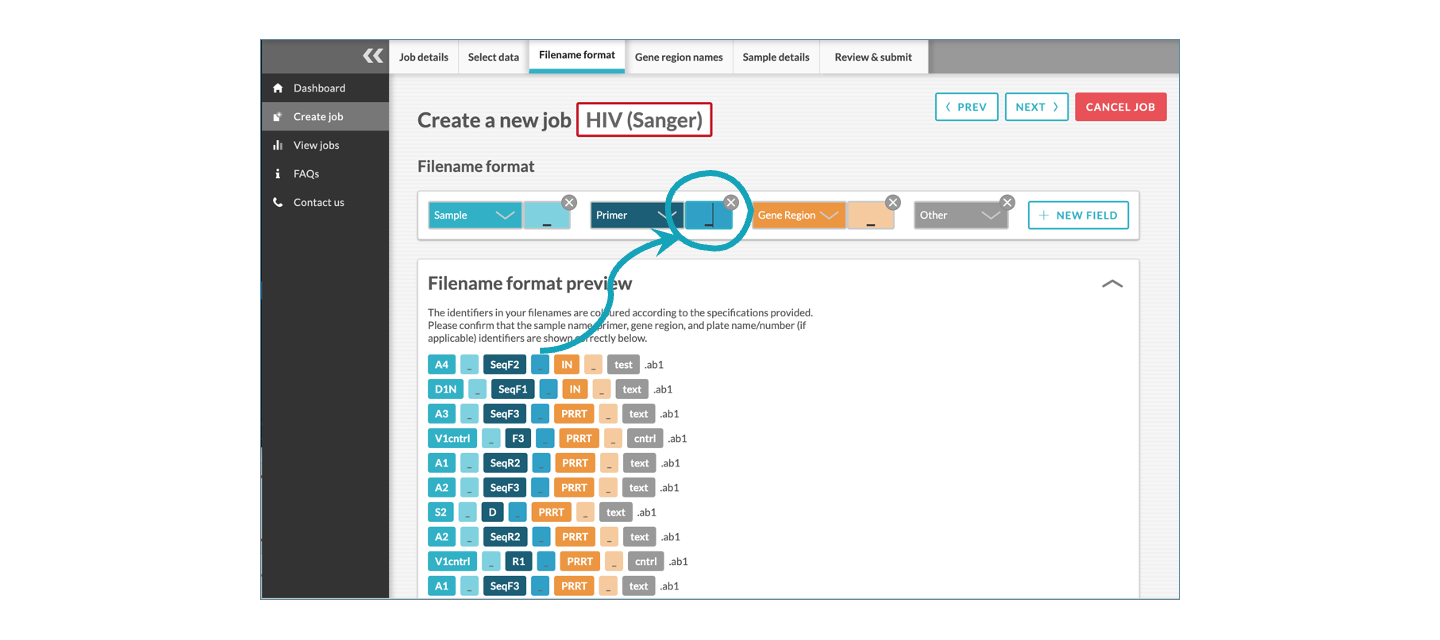
The preview window will indicate whether the filename information and delimiters have been set correctly. Once complete, click NEXT.
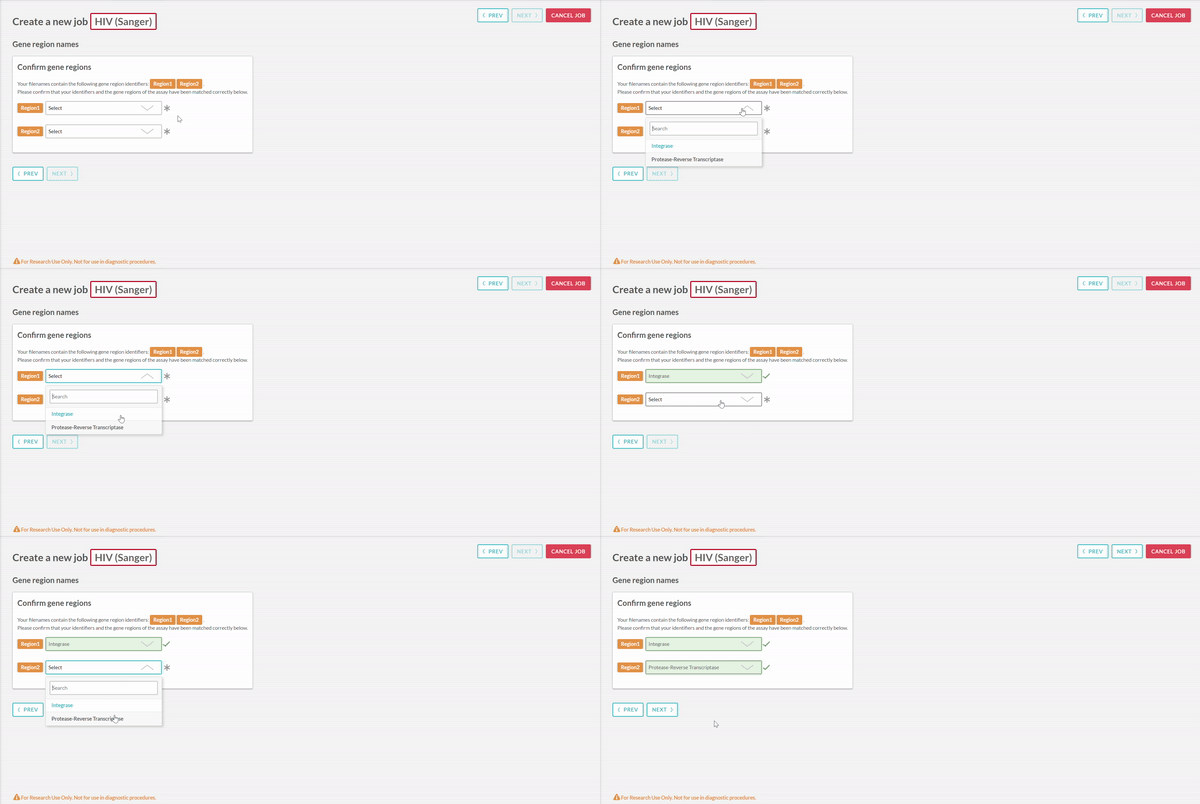
The Gene region names tab associates gene regions (protease + reverse transcriptase and/or integrase) with indentifiers in the filenames.
If you are running the Thermo Fisher HIV-1 Genotyping Kit (with Integrase), gene region identifiers need to form part of the filename. These gene regions can be assigned any label or name. At this step, you are asked to confirm which label is associated with which gene region.
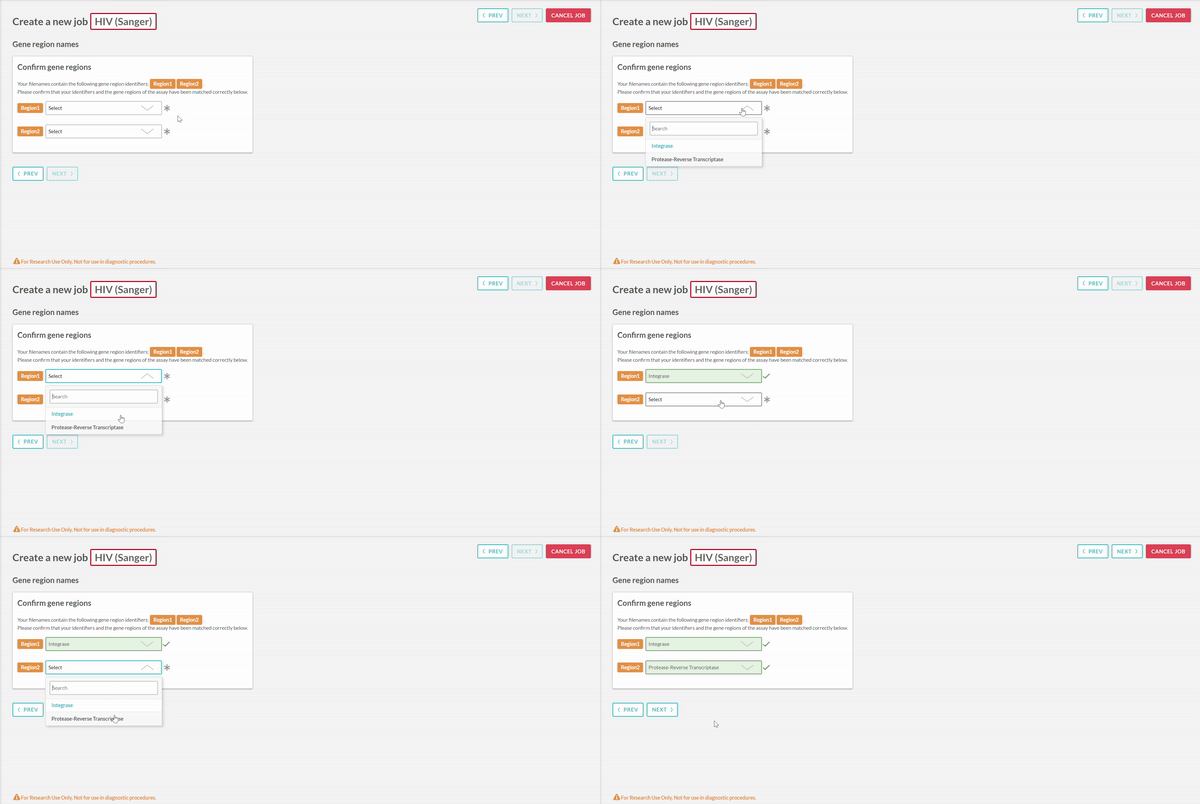
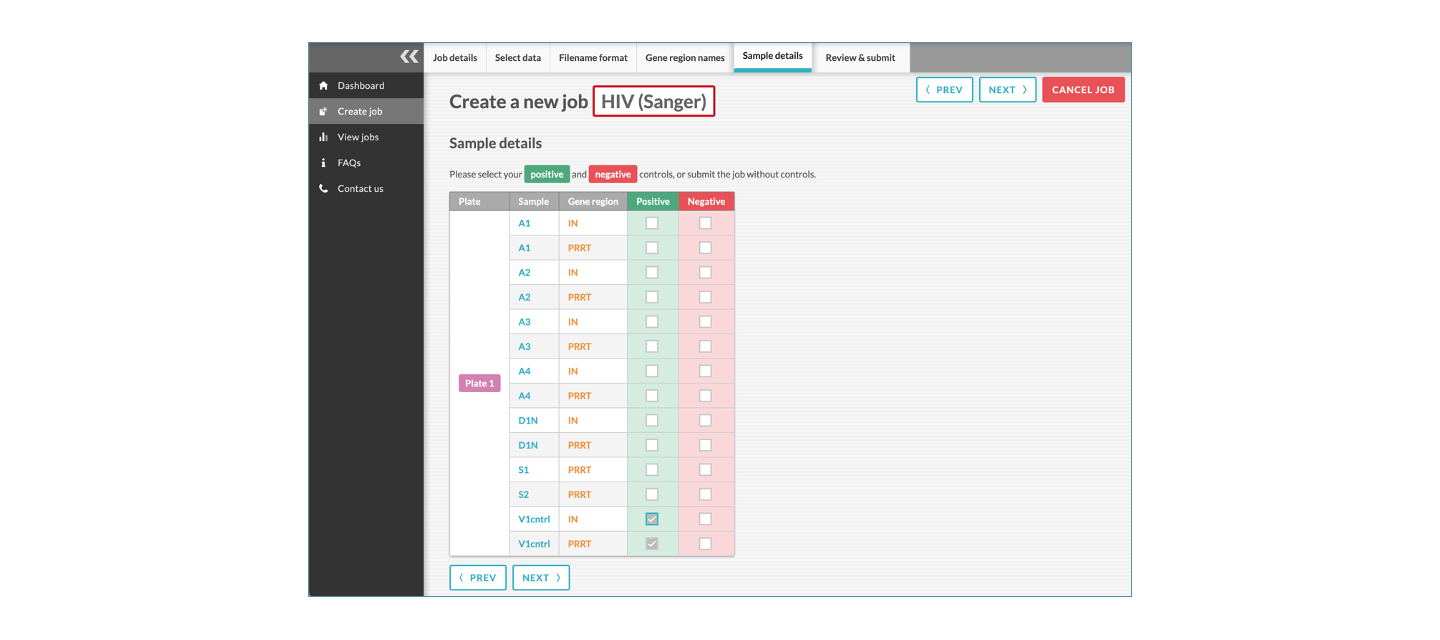
Once complete, click NEXT. The Sample details tab allows you to select which of your uploaded samples are the Negative and/or Positive controls (optional).
Click NEXT to move to the final, Review and submit tab.
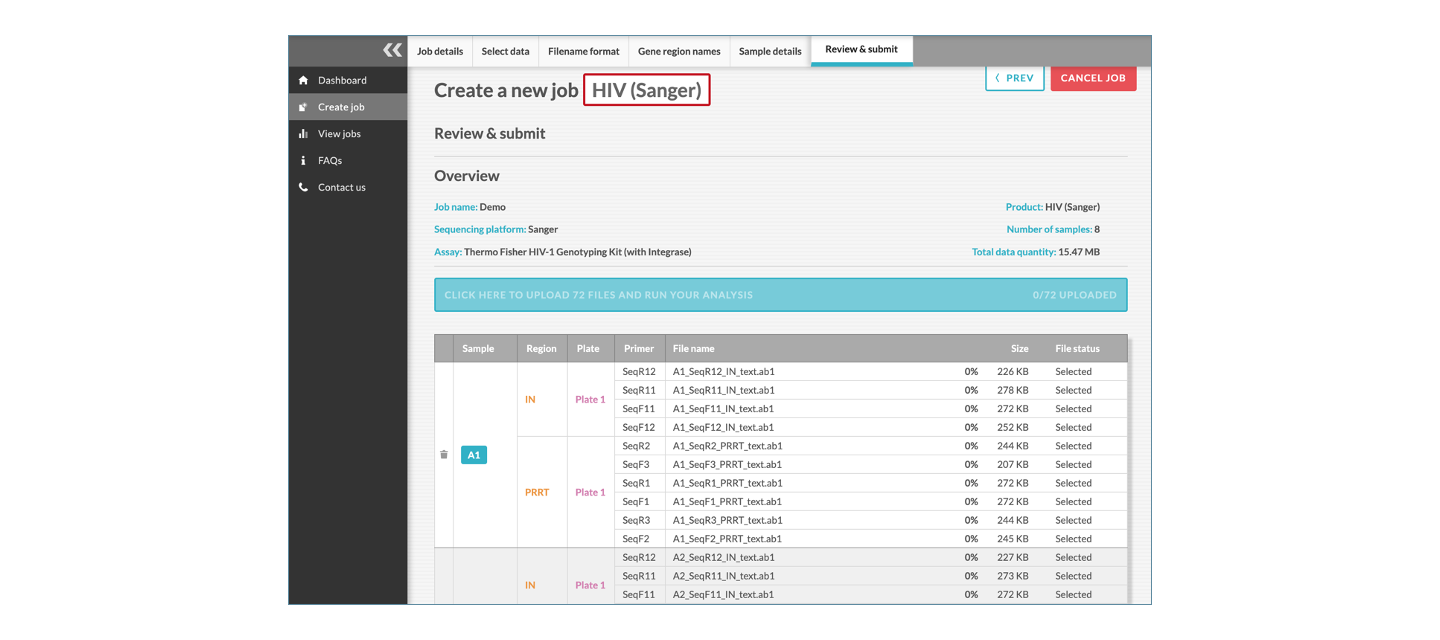
After review, click the upload bar to submit your sequences for analysis. The upload bar will show the progress during this step. If at any stage you want to return to a previous step, select the Prev button, or Cancel job to restart the process completely.
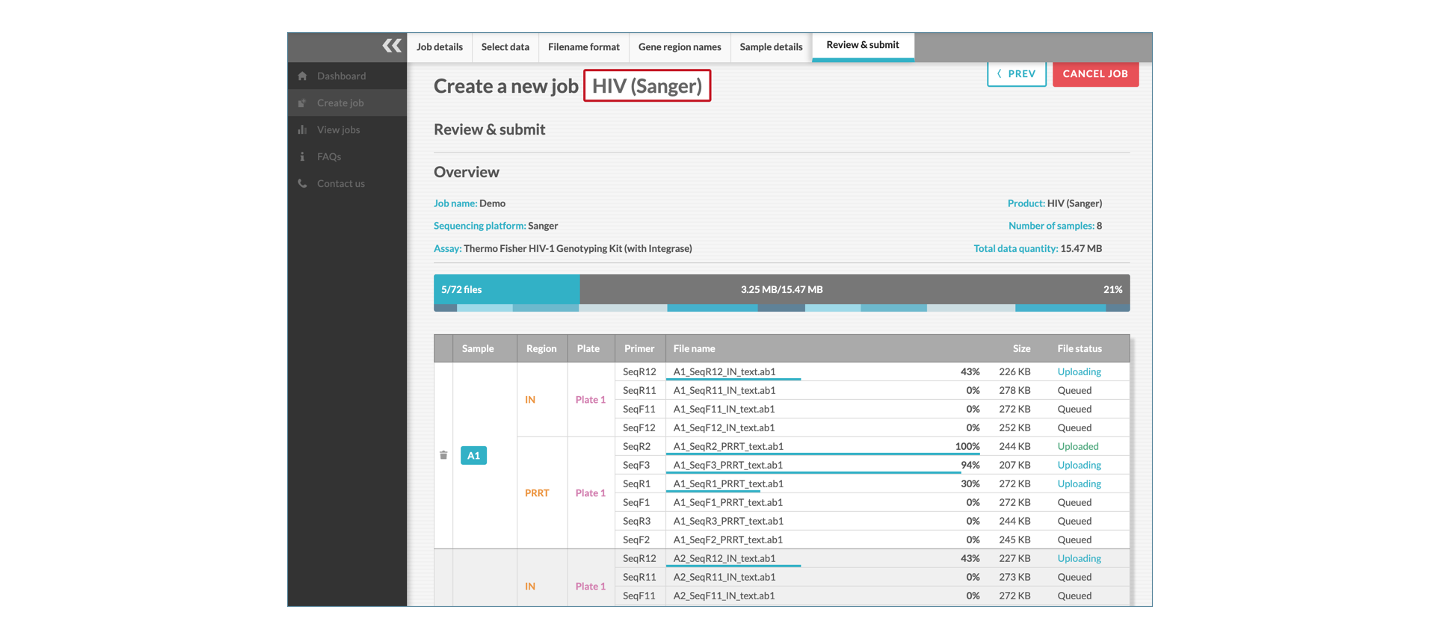
When the final sequence file is uploaded, the page will redirect to View jobs. The header notification message provides an update on the status of the job.
The View jobs page includes the Job name, Date on which the file processing was started, Info, Status, Samples overview, Platform, Assay, and Analysis. While processing, the Analysis column will show “Pending”. Once the final sample is complete (see Samples overview column), the Analysis column will show “View”.
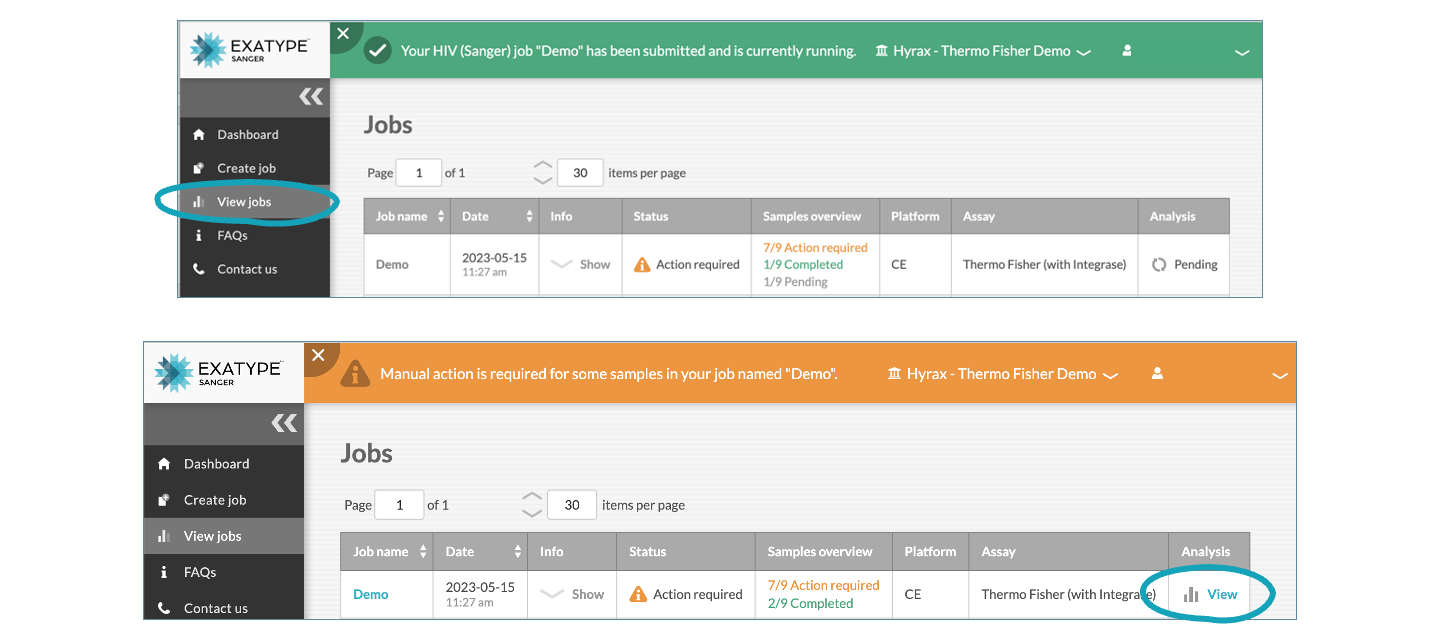
Your Exatype job will reflect one of the following status entries under the Status column:
Pending
Processing is underway.
Completed
The Exatype analysis is complete and no manual review of any samples is required.
Please note: while the status of a plate can be flagged as complete, this does not mean that a drug-resistance report was produced for all samples on that plate. It means that the analysis of all of the samples on the plate is complete and that no remaining samples require manual review.
Action required
One or more sample chromatogram/s require manual review. If the chromatograms are passed by the reviewer, a drug-resistance report will be generated. However, if the reviewer fails the sample, no report will be available. Once all sample chromatograms have been reviewed, the Job Status will change to completed.
Error
Exatype encountered a processing error during the analysis of the job.
Please note: samples that are not processed due to an error are not counted against the total samples run by your organisation.
4: Results and manual review
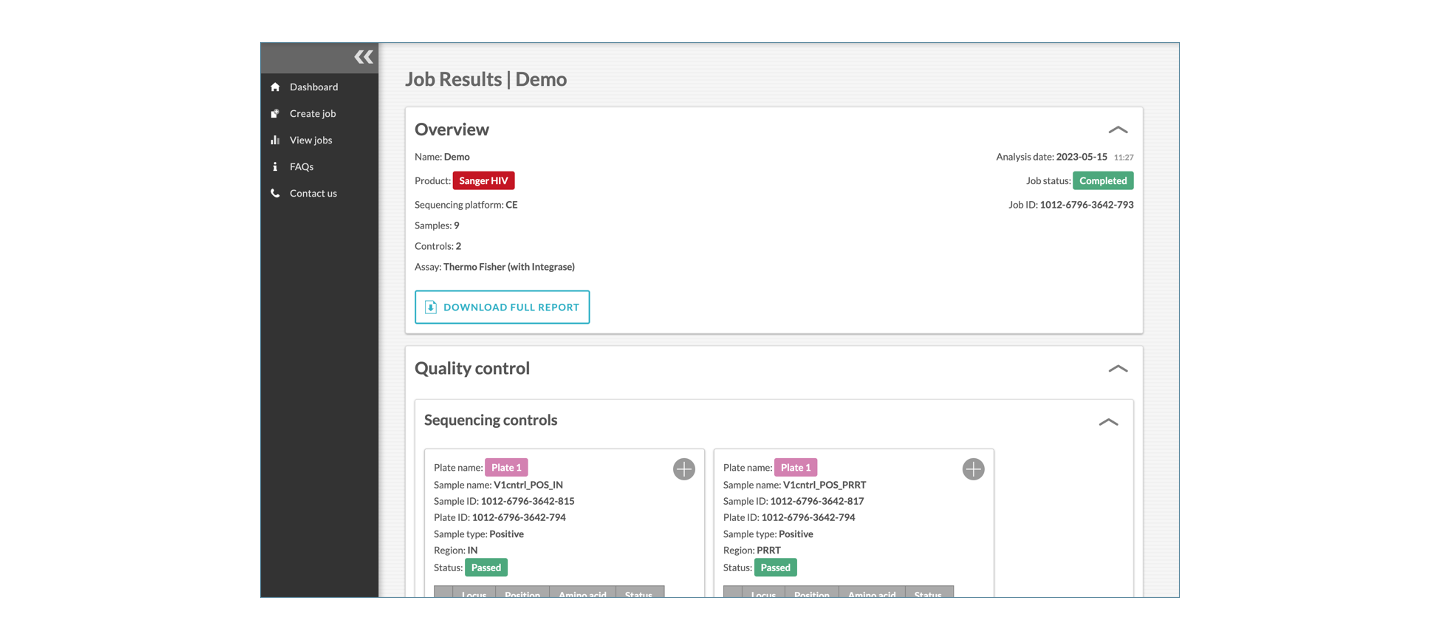
To view the results of a job, click View. This will take you to the Job results page. On this page you will see the Overview, Quality control results, Sample-specific results, and Downloads. The QC results and Downloads will reflect Pending until all the “Action required samples” are reviewed.
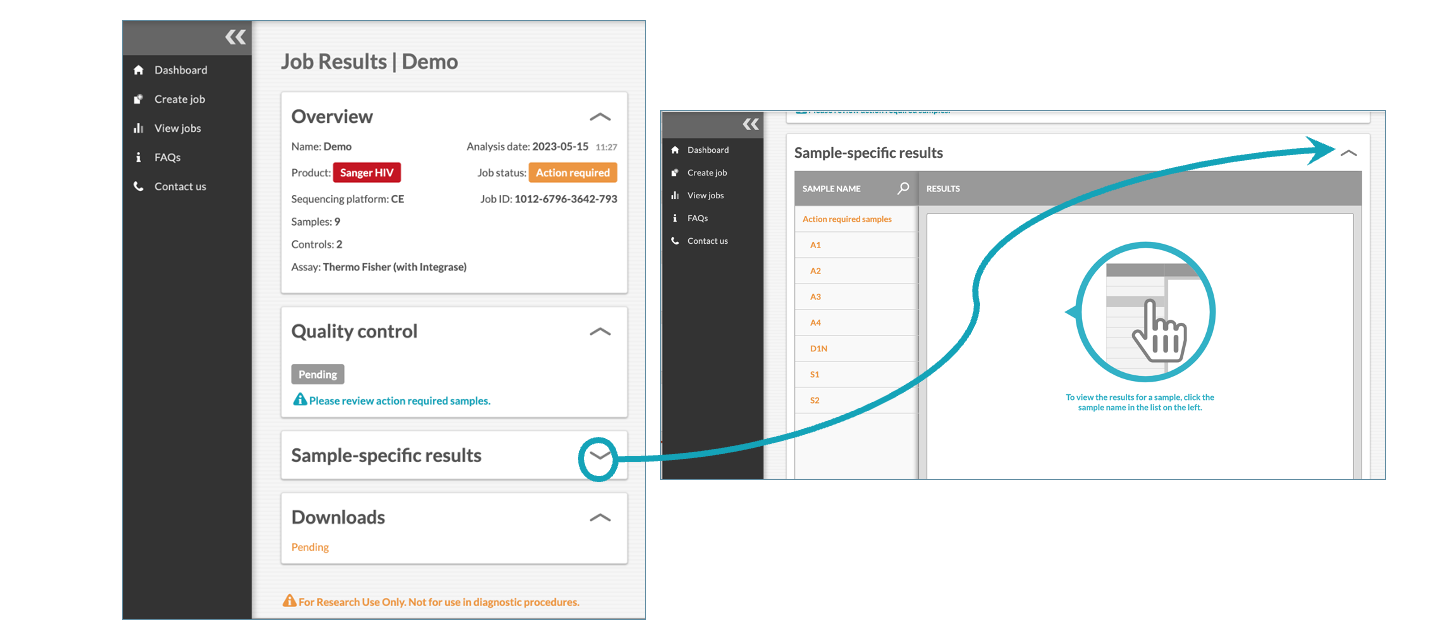
To view a sample result, click on the sample name. The Sample warnings section will show pending until all samples are reviewed. The gene regions that require review are labelled as ‘Action required’.
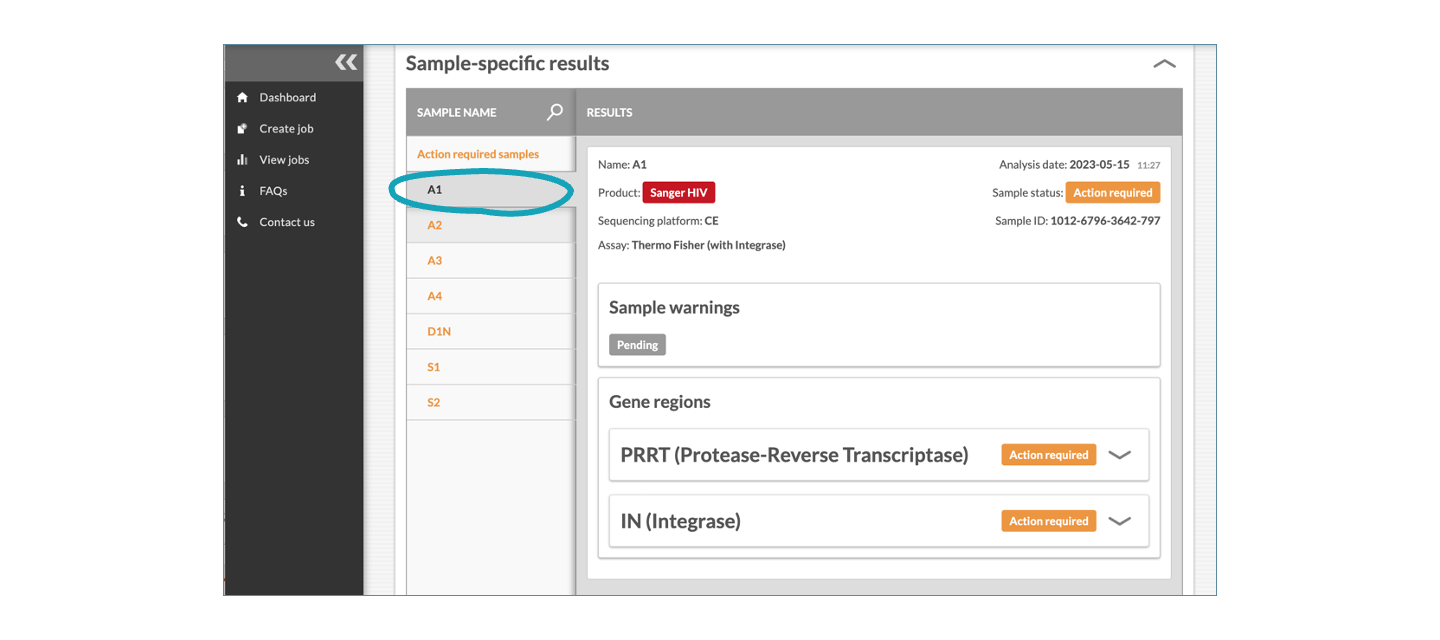
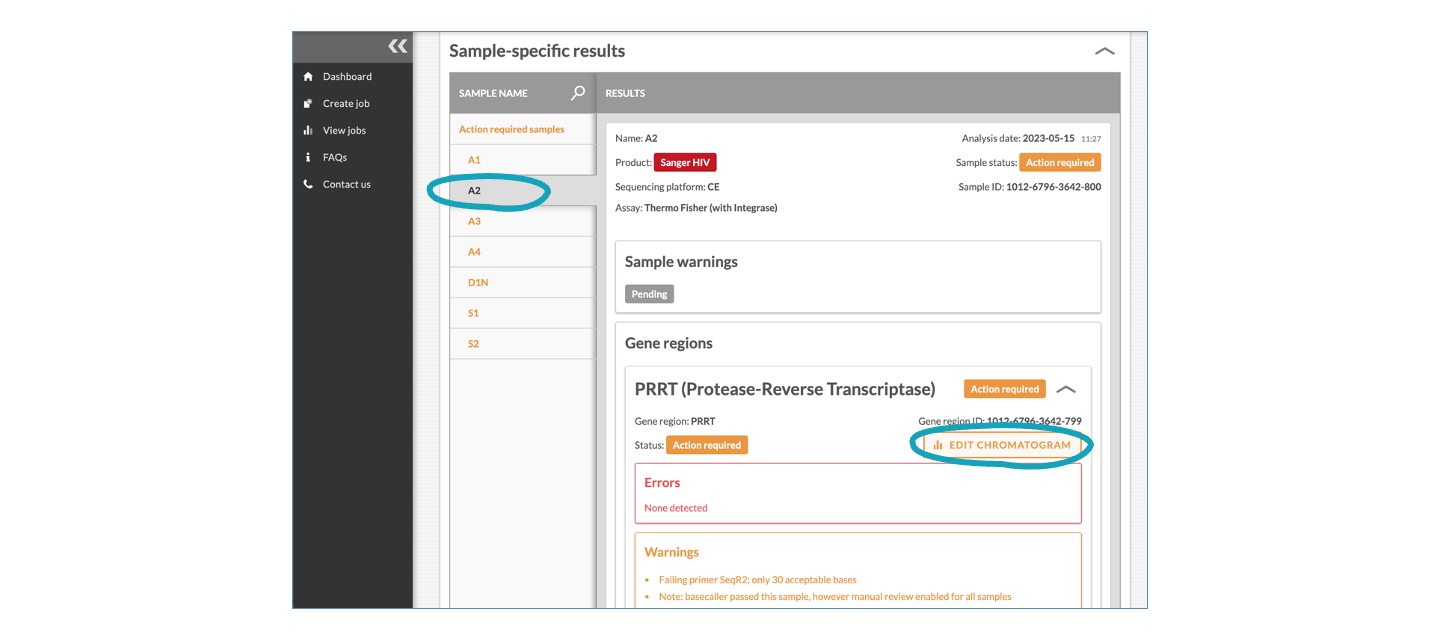
To illustrate the process of editing a chromatogram, select sample ‘A2’ and ‘Edit chromatogram’ for the PRRT (Protease and reverse transcriptase) gene region.
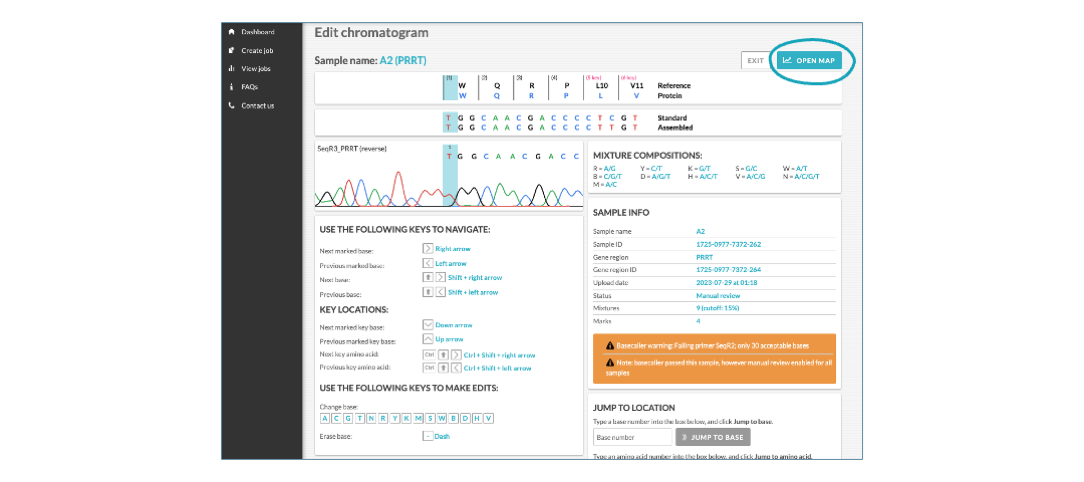
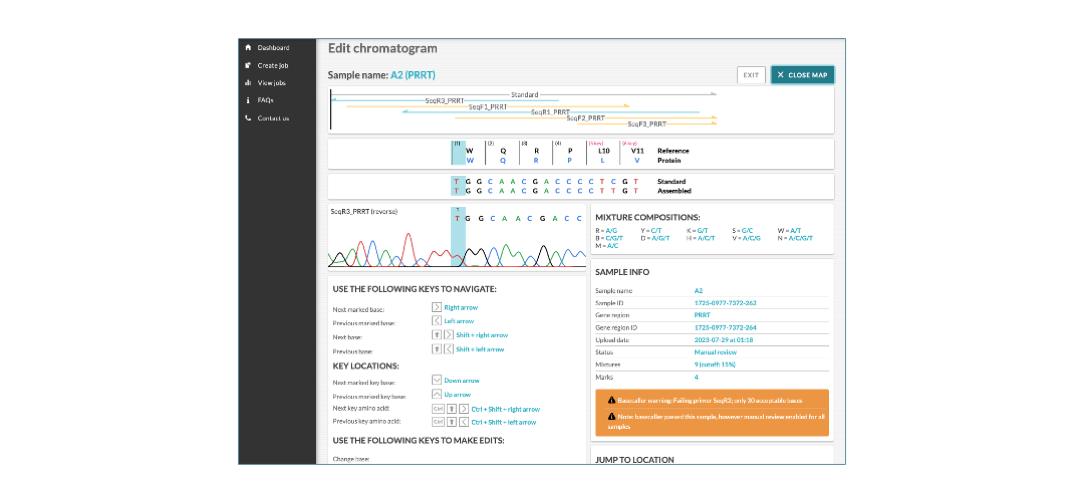
To visualise where the amplified regions are located in relation to the reference, click OPEN MAP.
In this example (A2), you can see two reverse and three forward primers. Here, the reverse primer (SeqR2) failed (see the first warning in orange: Failing primer SeqR2; only 30 acceptable bases).
After reviewing the chromatogram, and making edits where applicable, you can either SAVE, SAVE & PASS, or FAIL SAMPLE to complete the manual review. In this example, we will click SAVE & PASS.
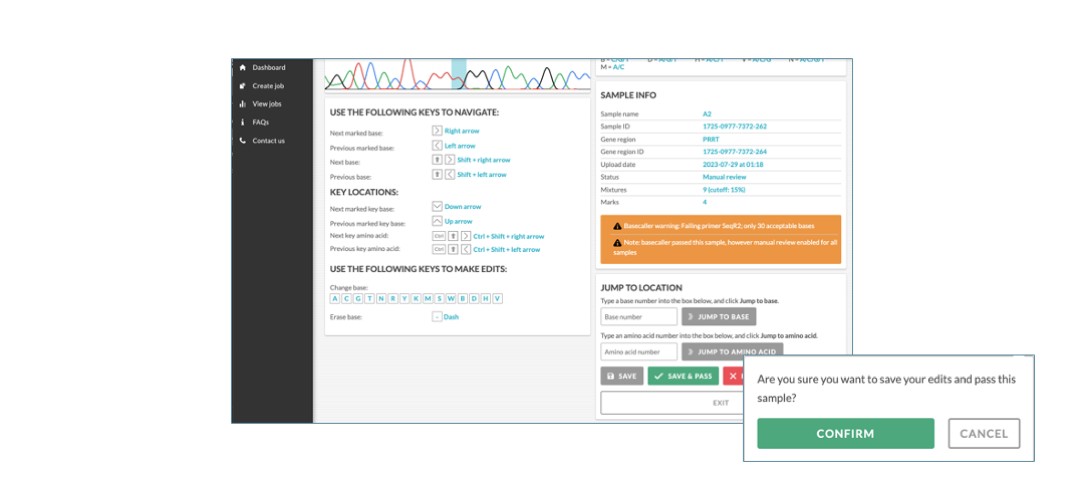
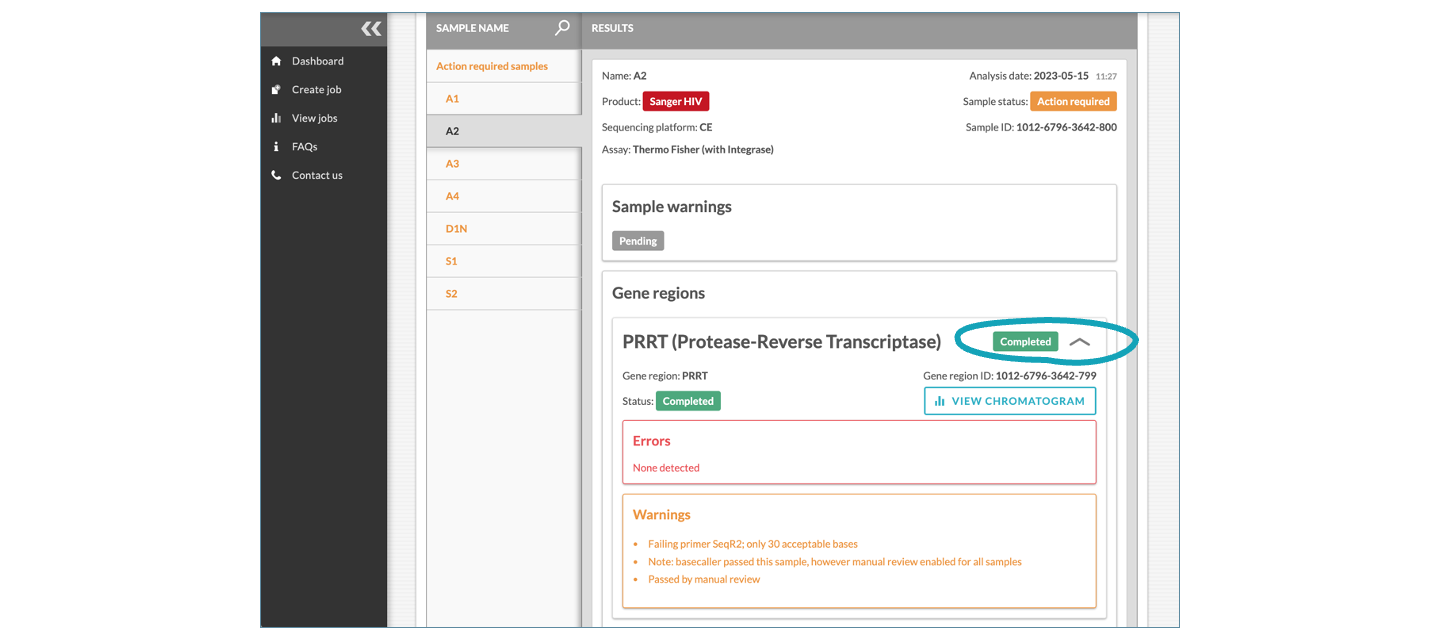
The page then redirects to the sample-specific results and after processing, the PRRT gene region reflects Completed, in green.
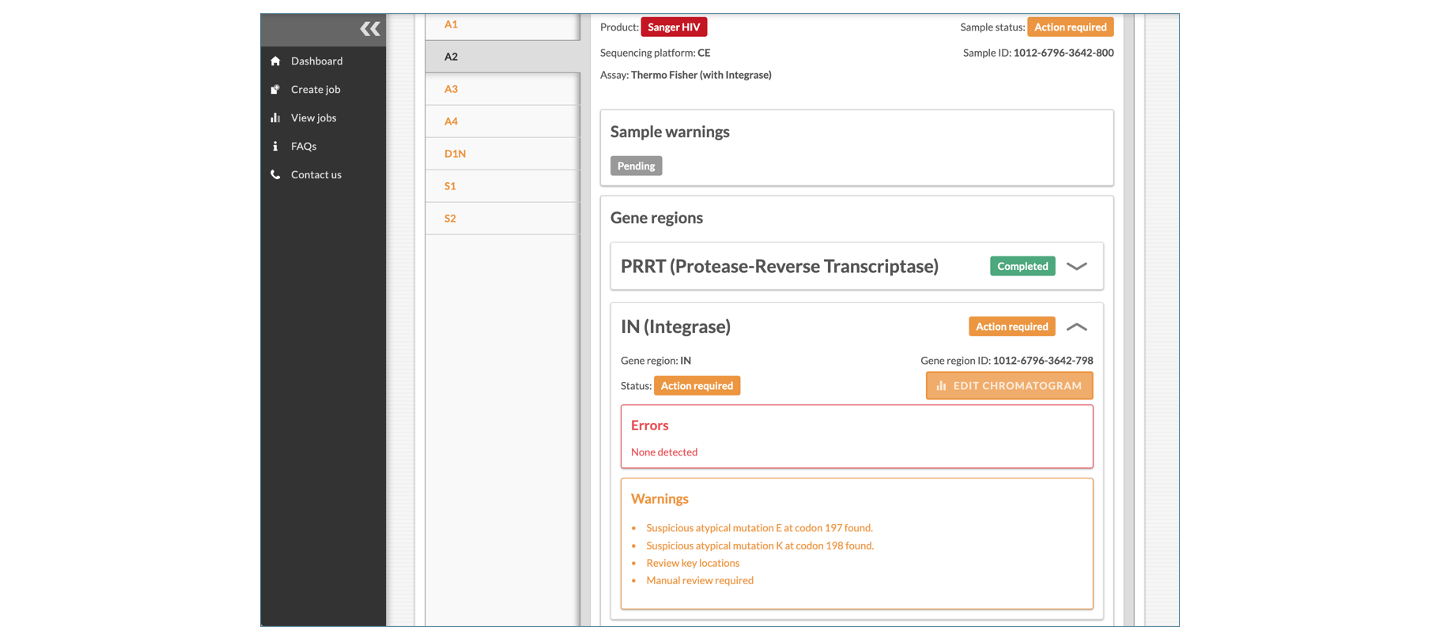
In order to complete sample A2, the (IN) Integrase gene region requires manual review. Scroll down and follow the same steps as with the PRRT region.
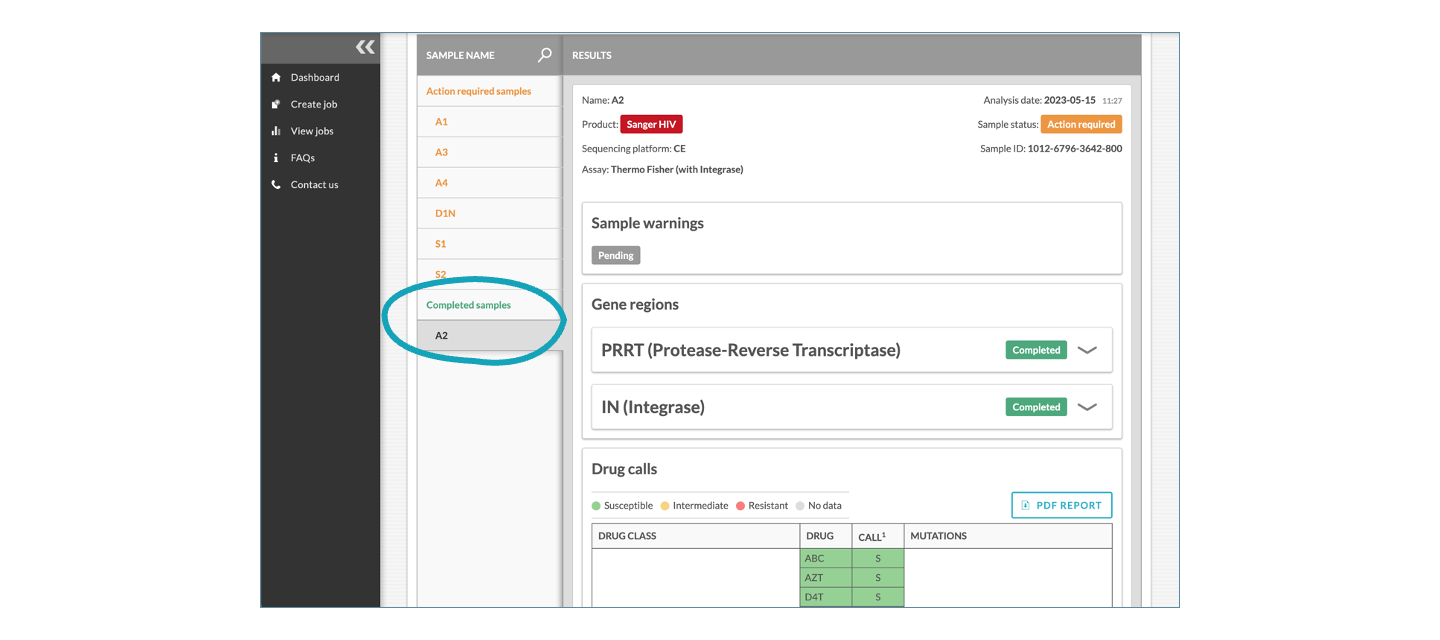
Once complete, sample A2 will be listed under Completed samples. While the Sample warnings are stil ‘Pending’, the drug-resistance report for the completed sample is available for download. Sample warnings include genetic distance comparisons, which are only possible once every sample in a job has been reviewed and either passed or failed.
To illustrate an example of chromatogram editing, please select Edit chromatogram of the IN gene region of sample A1.
Here you can navigate to different regions of IN with combinations of keystrokes (see key code under chromatogram on the user interface). Navigate to position 232 of the reference. This is amino acid N at position 232 of integrase. If, for arguments sake, you believe that the nucleotide base should be a mixture instead of G (guanine), you can type R to indicate that it should be called a mixture of G and A. The mixture composition is shown to the right of the chromatogram. For each edit, the Edit history shows the nucleotide Base change from Original to Updated.
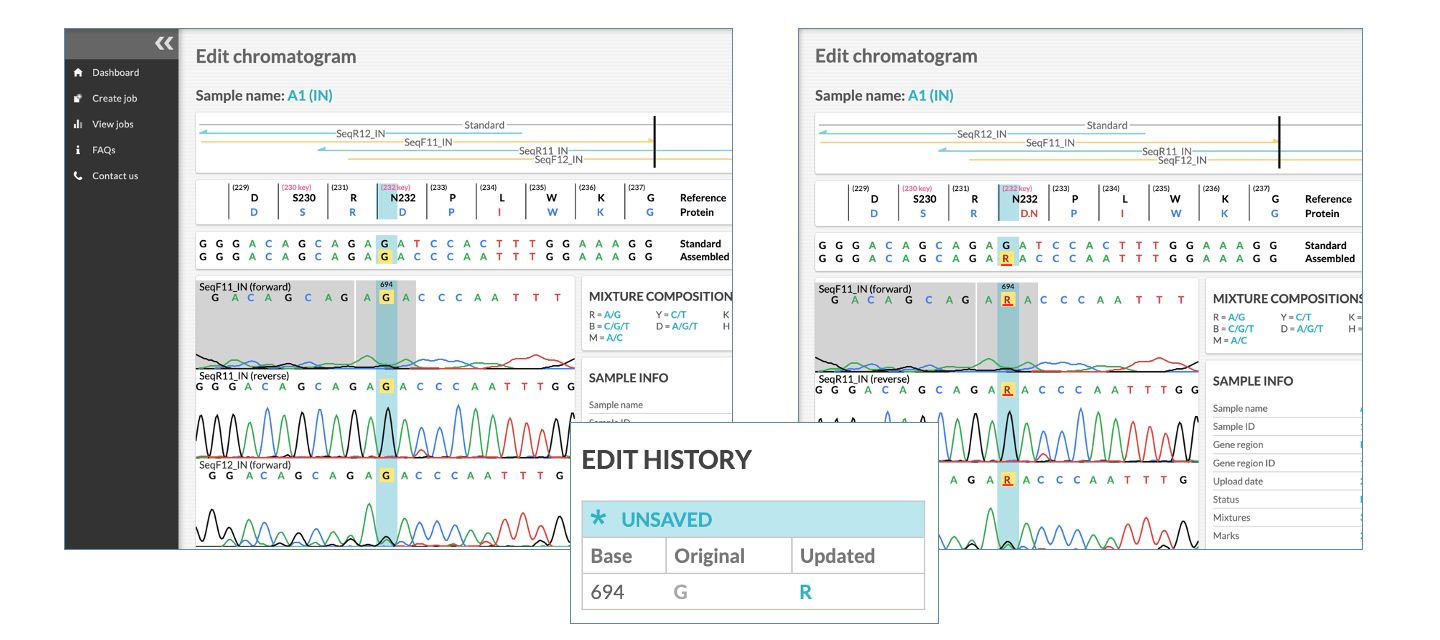
*Please note that this is shown merely as a representation of chromatogram editing, and does not constitute a recommendation or statement of opinion.
Once all samples that require manual review are complete, the page will redirect to View jobs; the header notification message provides an update on the status of the job.
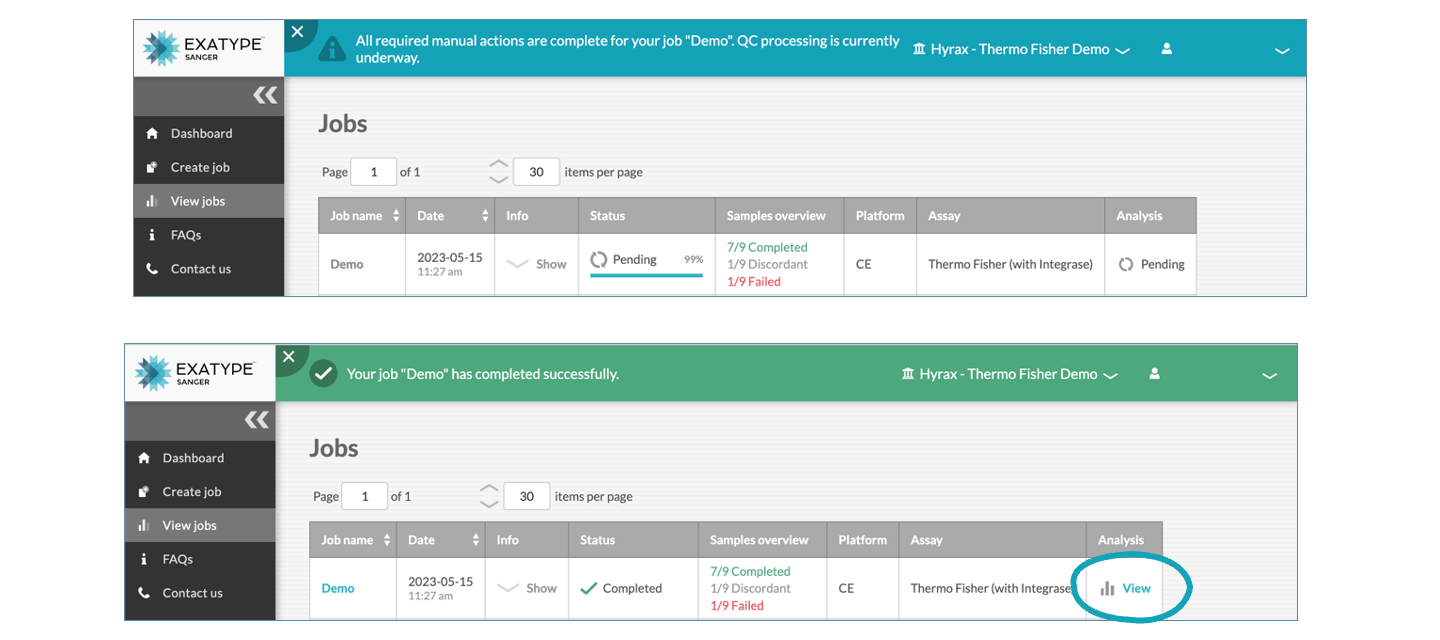
When processing completes, the job status will show Completed. Click
5: Final results and downloads
From the View jobs page, click
Overview
Here you can see an overview of the job, including an option to download the full report.
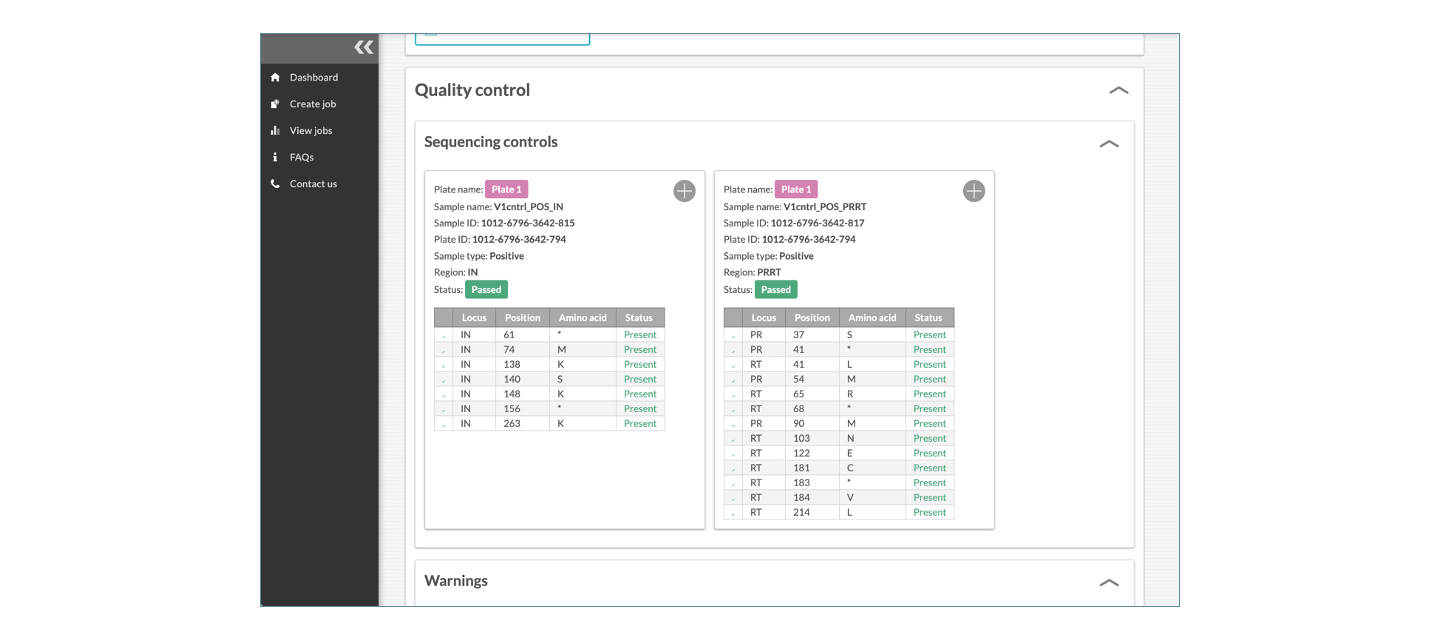
Quality Control
The quality control shows information on the positive and negative sequencing controls (Absent, Passed, or Failed), as well as warnings that flag possible contamination or unusual mutations. These are divided into two QC sections, Sequencing controls and Warnings.
The Warnings section includes contamination and unusual mutation checks.
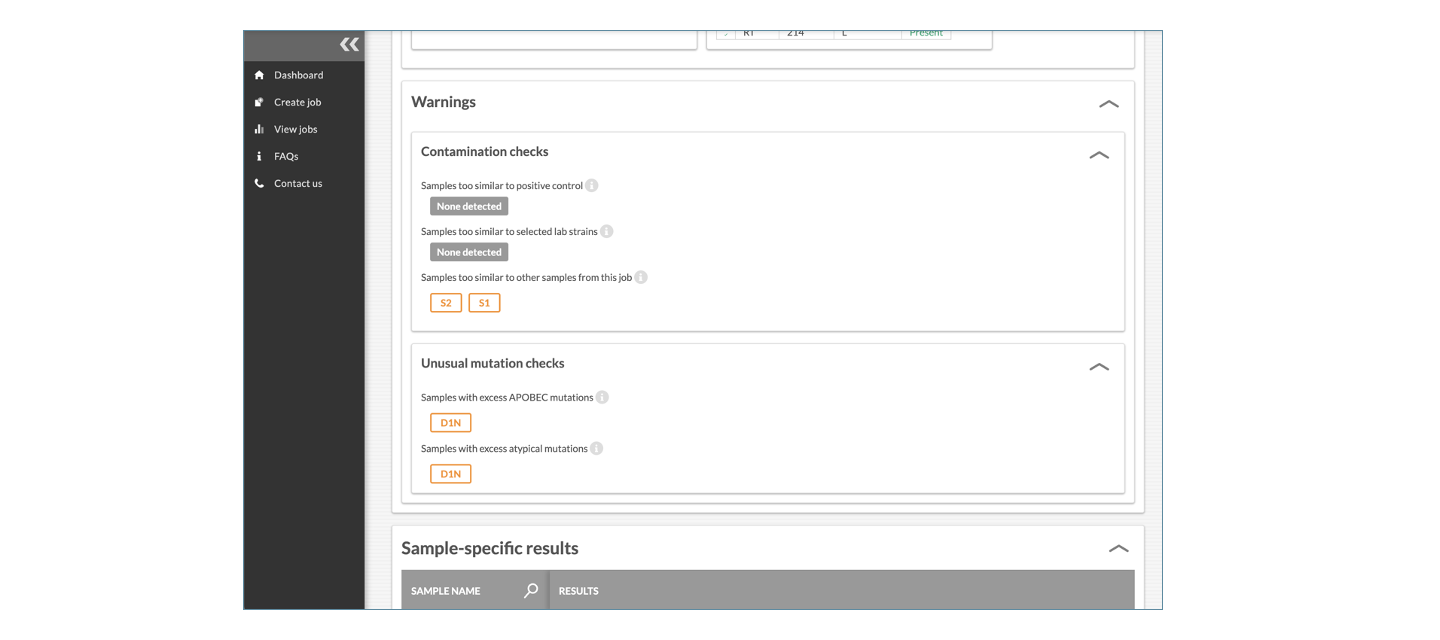
Contamination checks:
Three genetic distance calculations are carried out to determine similarity to the positive control, selected lab strains and other samples from the same job.
Samples too similar to positive control: The genetic distance between the listed sample(s) and the positive control is less than 0.5%. The genetic distance is calculated by dividing the number of discordant nucleotides between two sequences by the total sequence length.
Samples too similar to selected lab strains: The genetic distance between the listed sample(s) and one or more of the lab strains is less than 0.5%. The genetic distance is calculated by dividing the number of discordant nucleotides between two sequences by the total sequence length. The lab strains included are HXB2 (K03455)and NL4-3 (AF324493) for subtype B, and MJ-4 (AF321523) for subtype C.
Samples too similar to other samples from this job: The genetic distance between the listed sample(s) and one or more samples analysed in the same job is less than 0.5%. The genetic distance is calculated by dividing the number of discordant nucleotides between two sequences by the total sequence length.
Unusual mutation checks:
Samples with excess APOBEC mutations: The listed sample has four (or more) APOBEC mutations where at least one of these mutations is at a drug resistance site. An excess of APOBEC mutations may indicate replication-incompetent virus.
The lists of APOBEC mutations (at DRM and non-DRM positions) can be found at these links:
https://github.com/hivdb/hivfacts/blob/main/data/apobecs/apobecs.csv
https://github.com/hivdb/hivfacts/blob/main/data/apobecs/apobec_drms.csv
Samples with excess atypical mutations: The listed sample has three (or more) atypical mutations in protease, and/or five (or more) atypical mutations in reverse transcriptase, and/or four (or more) atypical mutations in integrase.
Atypical mutations are defined based on the Stanford HIVDR database hivfacts package: github.com/hivdb/hivfacts/blob/master/data/aapcnt/rx-all_subtype-all.json where amino acids flagged as unusual (“isUnusual”:true), are included as unusual mutations.
Note: A mutation may be flagged as both APOBEC and atypical.
The completed sample-specific results section follows the QC.
Sample-specific results
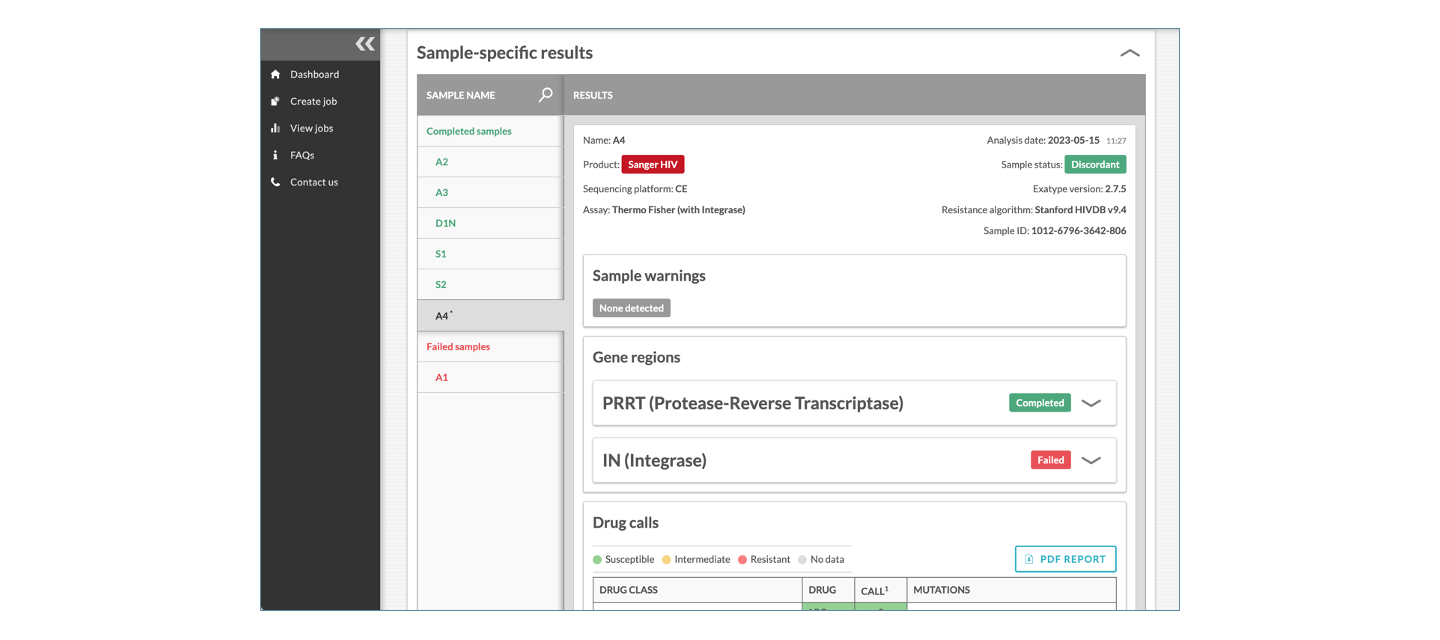
Samples that have passed are highlighted in green, samples where one gene region passed and the other gene region failed are highlighted in green with an asterisk (star *) to indicate that the results are discordant for that sample, samples that failed are highlighted in red, and the samples where manual review is required are shown in orange. If the sample passed, sample warnings (if any) and a drug-resistance report are shown. For failed samples, the warnings and errors are listed and no drug-resistance report is available. The option to View Chromatogram is shown for all passed and failed gene regions. Where manual review is required, the Report page will show an Edit Chromatogram button that links to the chromatogram viewer. At present, the chromatograms for failed and passed samples are not editable.
The final section is the Downloads section.
Downloads
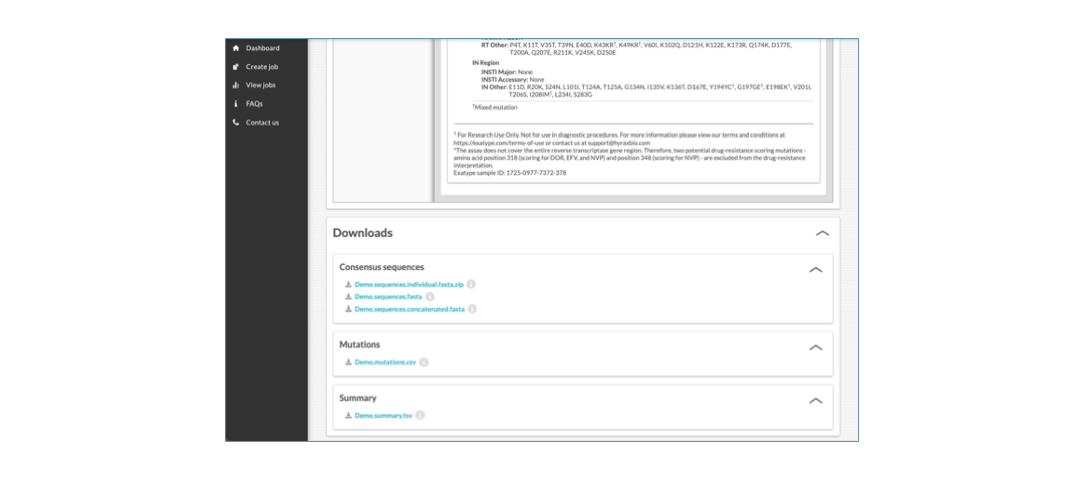
The files available for download are outlined below.
Sequences:
- Each sample sequence in an individual FASTA file (zip download).
- Single file (FASTA format) with each passed sample (PRRT and IN separately).
- Single file (FASTA format) with each passed sample provided as a concatenated FASTA sequence (PRRT and IN as a single FASTA sequence).
Mutations:
- Summary file of all observed mutations (csv format) with sample names, gene region, wild-type, variant, and variant tags (including whether a mixture is observed and whether the mutation is at a drug resistance position).
Summary:
- Summary file (tsv format) with: sequence, resistance, drug, and quality control information.
Congratulations, you have run your first project!
6: Administrator section
The first person to sign up and create an organisation will automatically be assigned as the administrator of the organisation.
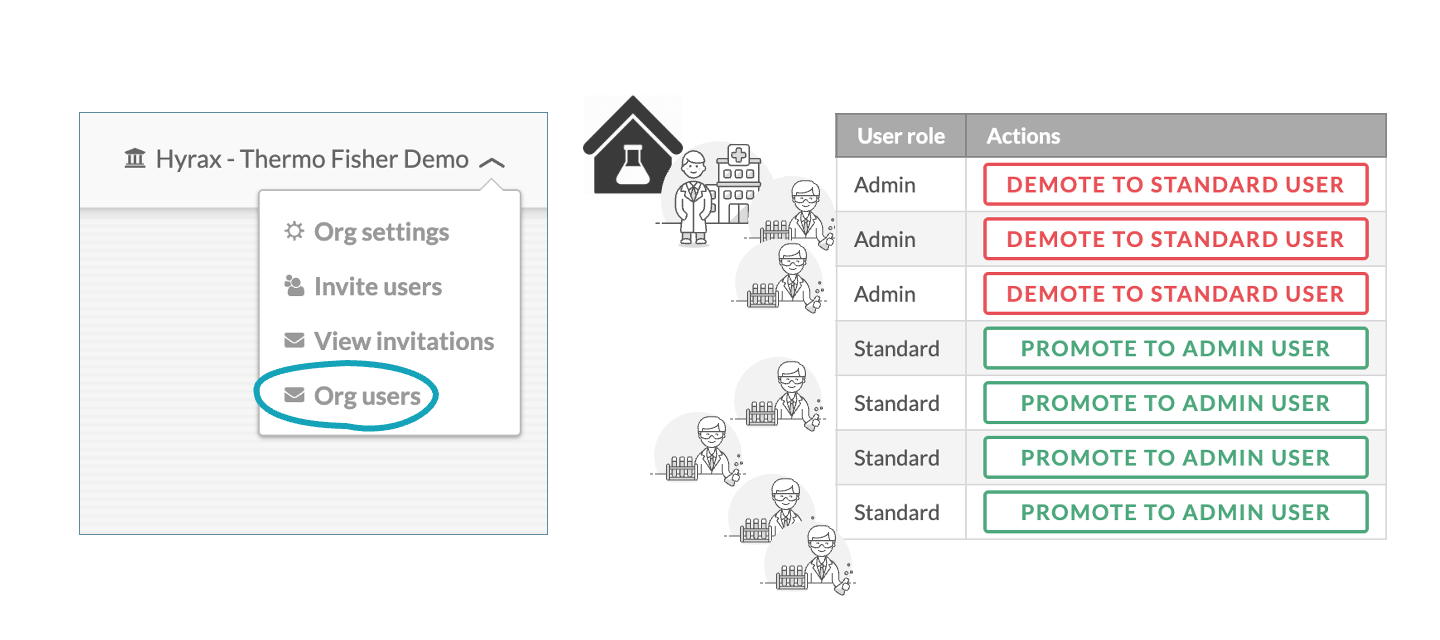
Currently, administrators can: invite further users to the same organisation, view invitations sent, and manage privileges of organisation users.
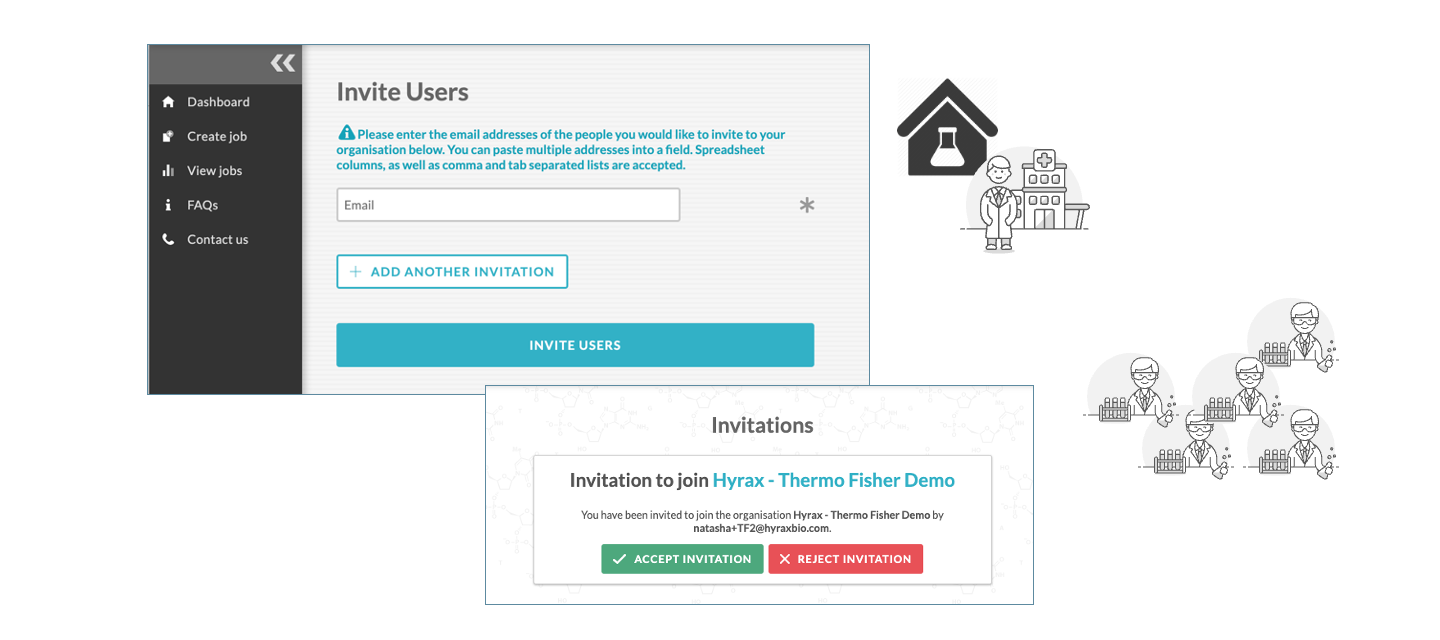
To invite further users, navigate to the top right admin panel available under the organisation name (in this example, Hyrax - Thermo Fisher Demo).
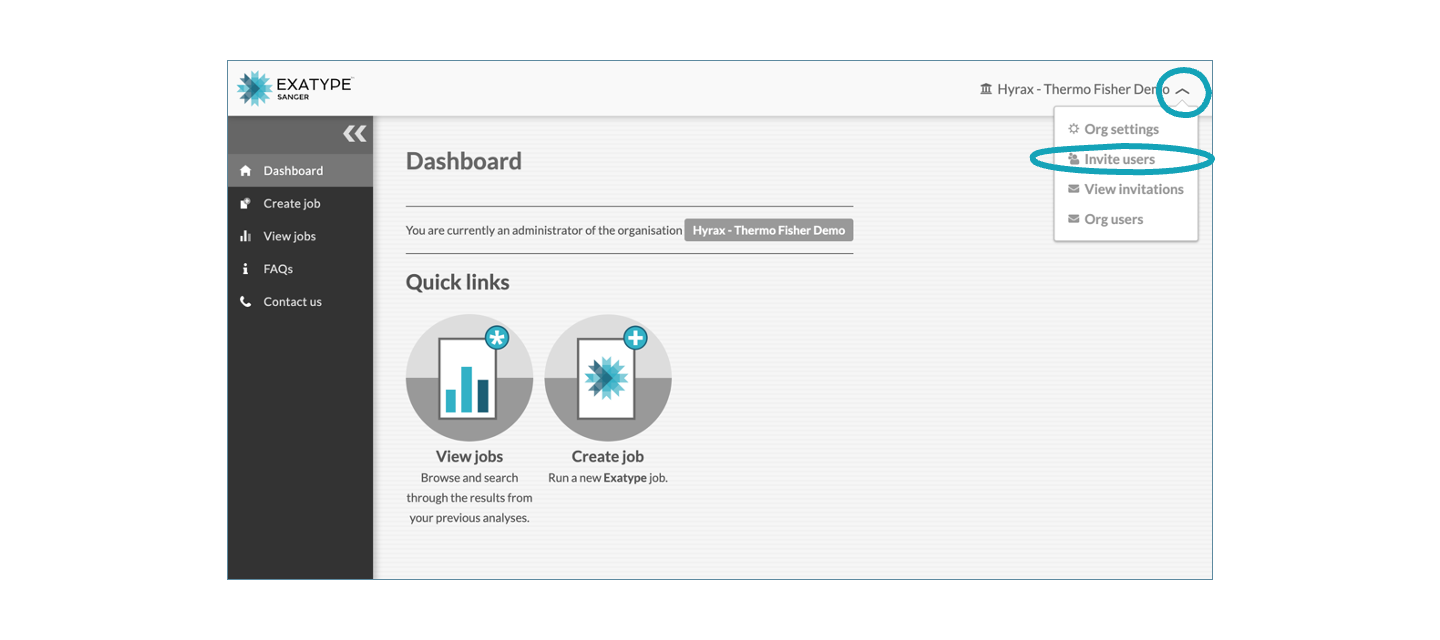
Invite users by adding their email addresses and clicking Invite users.
To either promote a user to administrator, or demote an administrator to a standard user, navigate to the Org users tab.
7: Questions and feedback
The Exatype: HIV (Sanger) FAQs are updated frequently. Please always refer back to the online version if you have any questions.
We are continuously working towards improving the Exatype platform. If you have any suggestions, comments or feature requests, please get in touch with us at sanger@hyraxbio.com.
What is Exatype?
Exatype is a DNA sequence analysis platform that streamlines data processing and interpretation. The Exatype platform is disease-agnostic and can be used for the analysis, interpretation and reporting across a wide range of applications for both Sanger and NGS sequence data.
Please see hyraxbio.com/exatype-platform/ for further details on the Exatype platform.
Why the name “Exatype”?
From “exa” (denoting factor of 1018, i.e., a large number) & “type” (from genotype: genetic code of an organism).
Can I download the FAQs for Exatype?
Yes, if you would like to save the FAQs for a specific product within Exatype you can print to PDF from your preferred browser. Simply select File (in your dropdown menu) and then the Print option. In the print settings select Save as PDF.
What is Exatype: HIV (Sanger)?
Exatype: HIV (Sanger) is an end-to-end computational workflow for HIV drug-resistance analysis and reporting from data generated through Sanger/CE sequencing. Sequence data (.ab1 files) are uploaded either manually (by a user) or automatically (directly from the sequencing machine) to the Exatype website. The sequence data for each sample are then analysed individually and sample-specific HIV drug-resistance reports are produced (see “What drug resistance algorithm does Exatype use?” for more information). HIV subtyping information is also provided(see “What HIV subtyping information is provided as part of the Exatype platform?” for more information).
Who should sign up for Exatype: HIV (Sanger)?
Organisations, laboratories and individuals carrying out HIV drug-resistance testing using Sanger/CE sequencing can sign up to use Exatype.
How do I sign up for an Exatype: HIV (Sanger) account and what information is needed?
You can sign up to Exatype: HIV (Sanger) by creating an account at: http://sanger.exatype.com/signup. Each user is grouped into a new or existing organisation; if you are the first person from your organisation to sign up to Exatype: HIV (Sanger), you will be asked to provide information about your organisation when you first log in. Once your organisation is approved, the first registered user for an organisation will be designated as the “Administrator”.
The administrator will be able to add further users as members of that organisation by inviting them via email. These users will be prompted to accept an invitation to the organisation from the administrator after sign-up, when they first log in. The administrator will also set each user’s account privileges, as either an administrator or not. Organisational accounts offer benefits over individual accounts, particularly for quality assurance purposes.
Upon sign-up, the organisation administrator will be asked to select either a Thermo Fisher Scientific assay (see What HIV (Sanger) assays do you support? for more information) or Other. The administrator will then be prompted to provide further information on the purchaser (the entity ordering and paying for the assay) for their laboratory or organisation, the country where the laboratory is based, and any available purchase numbers.
Please see** Exatype: HIV (Sanger): User Manual** for a step-by-step example of the sign-up process.
What options are available on the Exatype: HIV (Sanger) interface?
Once logged in, there are several options available to the user. The Dashboard includes basic information about your account as well as quick links to creating a new analysis, viewing your previously analysed files, and, if relevant, a list of pending sample chromatograms for which Manual review is required. The Create job, View jobs options, a link to these FAQs, and a Contact us button are shown in the left panel. If you are an administrator, options to Invite users, View invitations, and see the Org users (members of the organisation) will be available on the top right corner as a drop-down menu.
What HIV (Sanger) assays do you support?
There are different types of HIV drug-resistance assays that organisations can use to perform drug-resistance testing on Sanger DNA sequencing machines. Hyrax Biosciences has partnered with Thermo Fisher Scientific to offer free Exatype: HIV (Sanger) data analysis for users of their HIV Genotyping Kits:
RUO:
- A32317/A32318 (RUO) ABI HIV-1 Genotyping Kit Amplification and Sequencing Modules
- A55120(RUO) ABI HIV-1 Genotyping Kit with Integrase
CE-IVDD:
- A54401(CE-IVDD) ABI TaqPath Seq HIV-1 Genotyping Kit
Please see analysehiv.com for more information on Hyrax Biosciences partnership with Thermo Fisher Scientific or their assays.
If your organisation is not using one of the assays listed above, the organisation administrator may select “other” upon sign-up after which they will be prompted to provide details of the assay.
Do you support custom HIV drug-resistance testing assays?
If your organisation uses in-house primers and/or controls, or a combination of commercially-available kits and in-house assays, please contact us at sanger@hyraxbio.com for pricing and to discuss the details of your laboratory workflow.
What software and algorithms are included in the Exatype: HIV (Sanger) workflow?
Exatype: HIV (Sanger) uses the RECall software to interpret and analyse chromatograms; published information on RECall can be found at https://www.ncbi.nlm.nih.gov/pubmed/22403431.
Drug-resistance mutations (DRMs) are identified using the Stanford HIV Drug Resistance Algorithm. Exatype: HIV (Sanger) also implements several sequence quality-assurance checks, produces a plate-level quality-control summary and flags any sample-specific contamination (see “What drug resistance algorithm does Exatype use?” for more detail).
The Stanford HIVDB subtyping program (https://hivdb.stanford.edu/page/hiv-subtyper/) is used to assign a subtype to a sample based on its pol sequence, compared to a set of subtype-specific reference sequences (see “What HIV subtyping information is provided as part of the Exatype platform?” for more information).
Comprehensive quality-control reporting, for example genetic distance, APOBEC and atypical mutation reporting, as recommended by the WHO best practices, is also included.
How do I run a new analysis?
To run a new analysis, select the Create job option and follow the listed steps:
Job details
Select a Job name. The Job name may include any alphanumeric characters as well as . [ ] ( ) # _ - ~ & and '' (whitespace characters). The following characters, as well as non-printable characters, are disallowed: \ / : * ? " < > |.
There are two types of Thermo Fisher HIV drug-resistance testings assays: Thermo Fisher HIV-1 Genotyping Kit (without Integrase), which includes the protease and reverse transcriptase regions; and Thermo Fisher HIV-1 Genotyping Kit (with Integrase), which includes protease, reverse transcriptase as well as integrase regions. It is important to select the correct assay under Which assay are you running? to ensure that the downstream quality control analysis is processed correctly. Importantly, if you used the Thermo Fisher HIV-1 Genotyping Kit (with Integrase) but only amplified and sequenced the protease and reverse transcriptase regions, you should select the with Integrase assay.
Under the More options menu (see image below) you are able to select:
- Review all sequences: RECall-labelled PASSED (green), FAILED (red), and Manual Review (orange) sequences.
- Review sequences flagged as FAILED and Manual Review by RECall: RECall-labelled FAILED (red) and Manual Review (orange) sequences.
- Review only those sequences flagged for Manual Review by RECall: RECall-labelled Manual Review (orange) sequences only.
Note that the option, Review all sequences, is selected by default. Please get in touch (sanger@hyraxbio.com) if you want this default changed for your Organisation.
Select Data
The next step is to upload your .ab1 sequence files. Either drag and drop the sequence files from your file browser, or select Choose your sequence data files and navigate to the directory where your files are located. You can add one or more plates for each job. To add additional plates, click on the plus button next to the first plate. While default plate names are created, you can rename each plate by typing in the Name field.
Set Delimiters
When a group of samples (each represented by a number of .ab1 files, with one .ab1 file per amplicon) are uploaded, they are automatically matched and grouped. As per convention, your sequence file name will contain information on the sample name, primer detail, gene region (protease + reverse transcriptase and/or integrase), any other information, and (optionally) plate identifiers. At this step you can define your delimiters by typing in the character field (default first delimiter after the Sample field is _). The delimiters separate the information in your filenames. See What are the sample naming conventions? and the example below for further clarity.
Confirm gene regions
If you are running the Thermo Fisher HIV-1 Genotyping Kit (with Integrase), gene region identifiers need to form part of the filename. These gene regions can be assigned any label or name. At this step, you are asked to confirm which label is associated with which gene region.
Controls
At the next step, you will be given the option to select which of your uploaded samples are the Negative and/or Positive controls. Please see What are positive and negative controls? for more detail.
Review & Submit
The final step is to review the details of the job. If your files are grouped by sample, and the controls (if present) have been selected, click the upload bar to submit your sequences for analysis. The upload bar will show the progress during this step. If at any stage you want to return to a previous step, select the Prev button, or Cancel job to restart the process completely.
What are the sample naming conventions?
Naming conventions exist to enable conformity across sequencing runs. Each sample will have an associated name (Sample), primer details (Primer) and, if running the Thermo Fisher HIV-1 Genotyping Kit (with Integrase) assay, region identifiers (Gene Region); optionally plate identifiers (Plate) and other (Other) information are also included. Five examples are provided below.
EXAMPLE 1:
Filename with sample name, primer, gene regions and other information; Thermo Fisher HIV-1 Genotyping Kit (with Integrase) assay selected.
Sample_Primer-GeneRegion+Other
Six protease-reverse transcriptase (PRRT) region amplicons:
- DBS001
_F1-PRRT+Nov20.ab1 - DBS001
_F2-PRRT+Nov20.ab1 - DBS001
_F3-PRRT+Nov20.ab1 - DBS001
_R1-PRRT+Nov20.ab1 - DBS001
_R2-PRRT+Nov20.ab1 - DBS001
_R3-PRRT+Nov20.ab1
Four integrase (IN) region amplicons:
- DBS001
_F1-IN+Nov20.ab1 - DBS001
_F2-IN+Nov20.ab1 - DBS001
_R1-IN+Nov20.ab1 - DBS001
_R2-IN+Nov20.ab1
Where:
- Sample: DBS001
- Primer: F1, F2, F3, R1, R2, R3 for protease-reverse transcriptase, and F1, F2, R1, R2 for integrase
- GeneRegion: PRRT for protease-reverse transcriptase, and IN for integrase
- Other: Nov20
- Delimiters:
_(underscore),-(hyphen), and+(plus).
EXAMPLE 2:
Filename with sample name, primer, gene regions and other information; Thermo Fisher HIV-1 Genotyping Kit (with Integrase) assay selected.
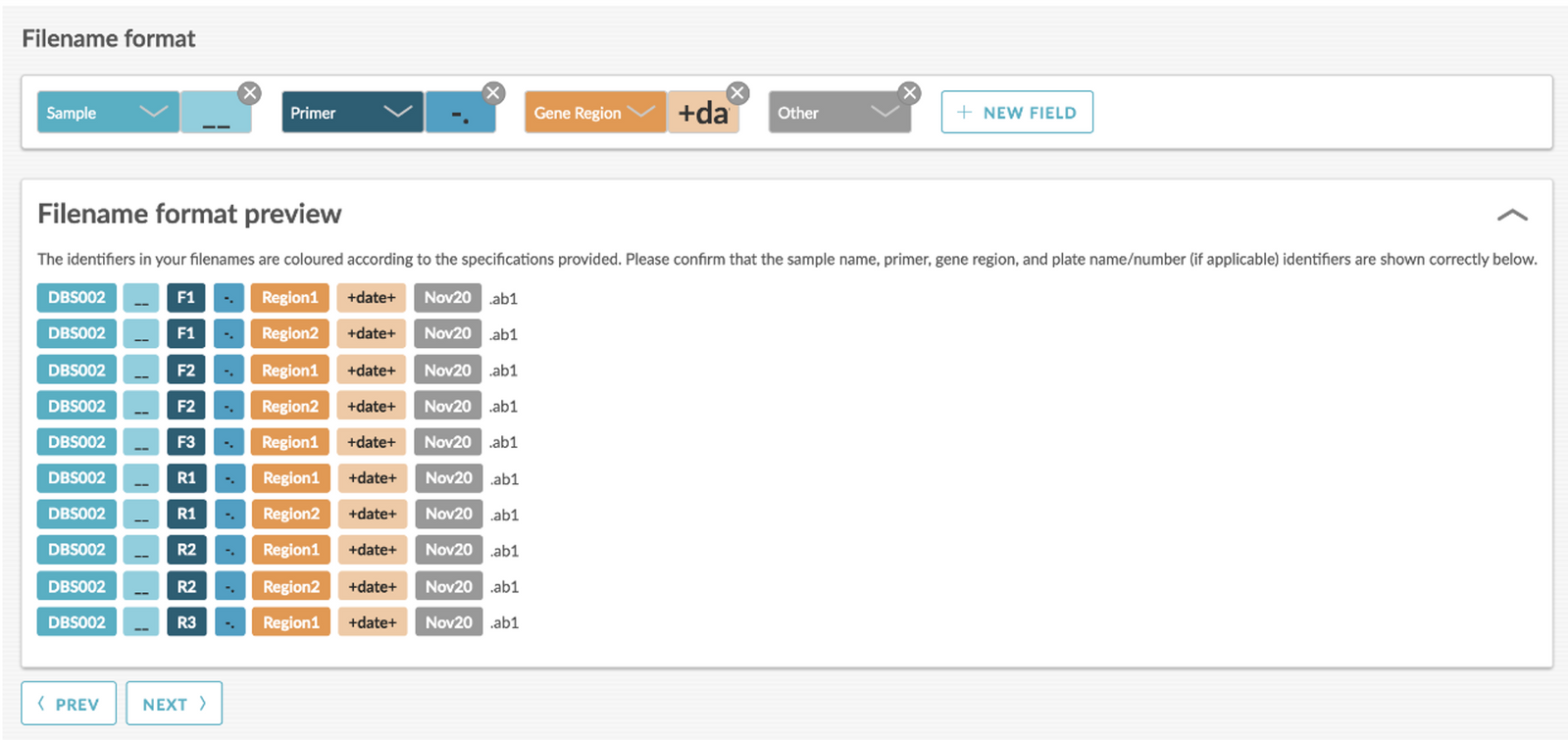
Sample__Primer-.GeneRegion+date+Other
Six protease-reverse transcriptase (PRRT) region amplicons:
- DBS002
__F1-.Region1+date+Nov20.ab1 - DBS002
__F2-.Region1+date+Nov20.ab1 - DBS002
__F3-.Region1+date+Nov20.ab1 - DBS002
__R1-.Region1+date+Nov20.ab1 - DBS002
__R2-.Region1+date+Nov20.ab1 - DBS002
__R3-.Region1+date+Nov20.ab1
Four integrase (IN) region amplicons:
- DBS002
__F1-.Region2+date+Nov20.ab1 - DBS002
__F2-.Region2+date+Nov20.ab1 - DBS002
__R1-.Region2+date+Nov20.ab1 - DBS002
__R2-.Region2+date+Nov20.ab1
Where:
- Sample: DBS002
- Primer: F1, F2, F3, R1, R2, R3 for protease-reverse transcriptase, and F1, F2, R1, R2 for integrase
- GeneRegion: Region1 for protease-reverse transcriptase, and Region2 for integrase
- Other: Nov20
- Delimiters:
__(underscore underscore (two underscores)),-.(hyphen full-stop), and+date+(plus date plus).
EXAMPLE 3:
Filename with sample name, primer, gene regions, plate, and other information; Thermo Fisher HIV-1 Genotyping Kit (with Integrase) assay selected.
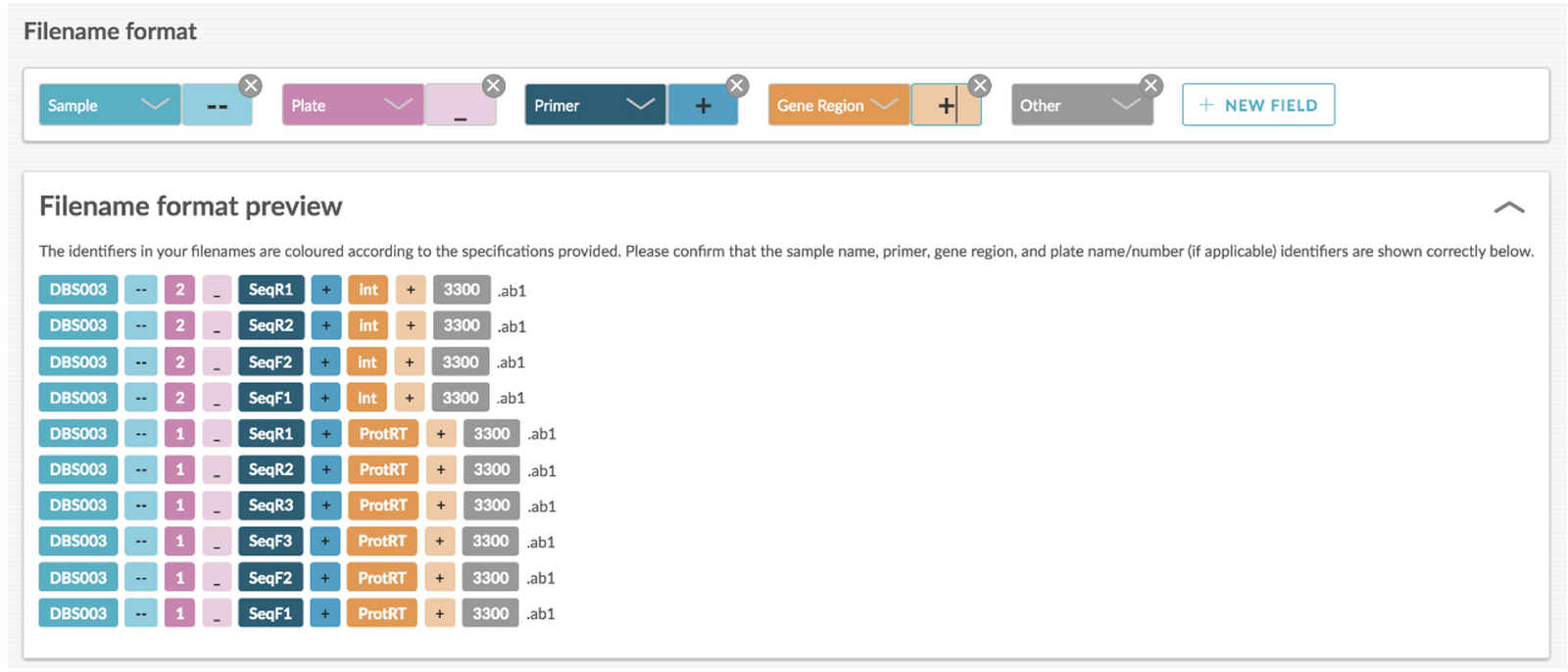
Sample--Plate_Primer+GeneRegion+Other
Six protease-reverse transcriptase (PRRT) region amplicons:
- DBS003
--1_SeqF1+ProtRT+3300.ab1 - DBS003
--1_SeqF2+ProtRT+3300.ab1 - DBS003
--1_SeqF3+ProtRT+3300.ab1 - DBS003
--1_SeqR1+ProtRT+3300.ab1 - DBS003
--1_SeqR2+ProtRT+3300.ab1 - DBS003
--1_SeqR3+ProtRT+3300.ab1
Four integrase (IN) region amplicons:
- DBS003
--2_SeqF1+int+3300.ab1 - DBS003
--2_SeqF2+int+3300.ab1 - DBS003
--2_SeqR1+int+3300.ab1 - DBS003
--2_SeqR2+int+3300.ab1
Where:
- Sample: DBS004
- Plate: ‘1’ for the protease-reverse transcriptase region, and ‘2’ for the integrase region
- Primer: SeqF1, SeqF2, SeqF3, SeqR1, SeqR2, SeqR3 for protease-reverse transcriptase, and SeqF1, SeqF2, SeqR1, SeqR2 for integrase
- Gene Region: ProtRT for protease-reverse transcriptase, and int for integrase
- Other: 3300
- Delimiters:
--(hyphen hyphen),_(underscore),+(plus), and+(plus).
EXAMPLE 4:
Filename with sample name, primer, and other information; Thermo Fisher HIV-1 Genotyping Kit (without Integrase) assay selected.
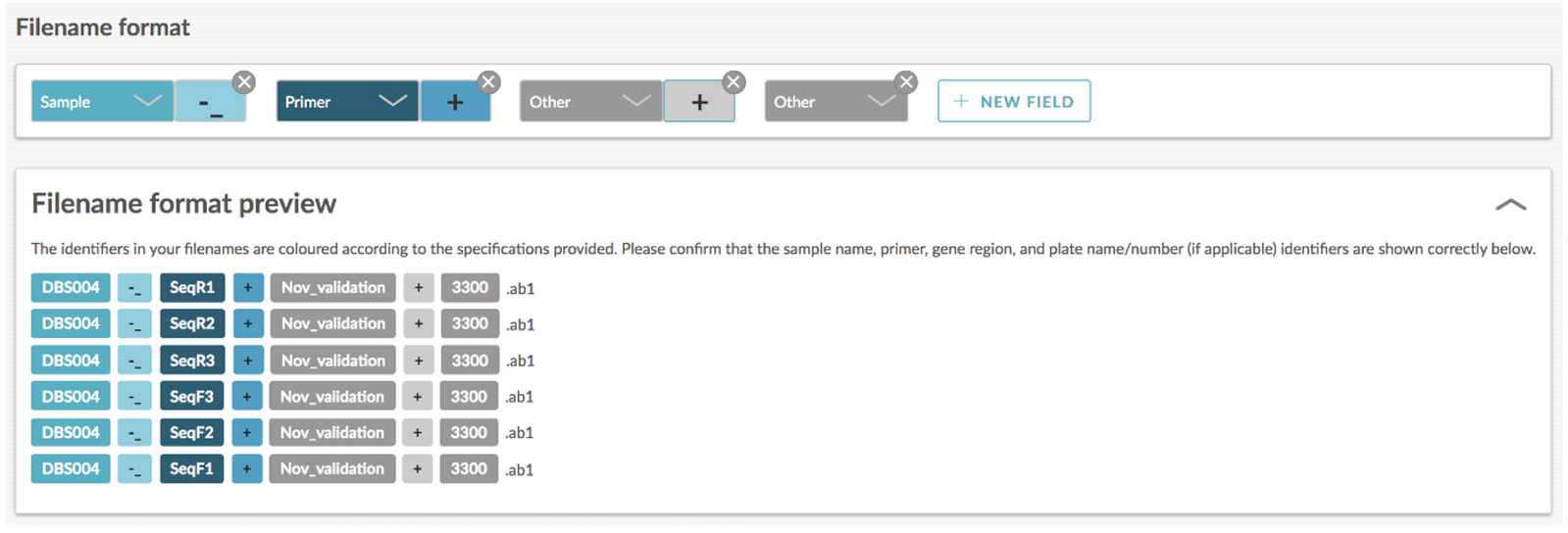
Sample-_Primer+Other+Other
Six protease-reverse transcriptase (PRRT) region amplicons:
- DBS004
-_SeqF1+Nov_validation+3300.ab1 - DBS004
-_SeqF2+Nov_validation+3300.ab1 - DBS004
-_SeqF3+Nov_validation+3300.ab1 - DBS004
-_SeqR1+Nov_validation+3300.ab1 - DBS004
-_SeqR2+Nov_validation+3300.ab1 - DBS004
-_SeqR3+Nov_validation+3300.ab1
Where:
- Sample: DBS005
- Primer: SeqF1, SeqF2, SeqF3, SeqR1, SeqR2, SeqR3 for protease-reverse transcriptase
- Other: Nov_validating and 3300
- Delimiters:
-_(hyphen underscore)+(plus), and+(plus).
EXAMPLE 5:
Filename with sample name, primer, and other information; Thermo Fisher HIV-1 Genotyping Kit (without Integrase) assay selected.
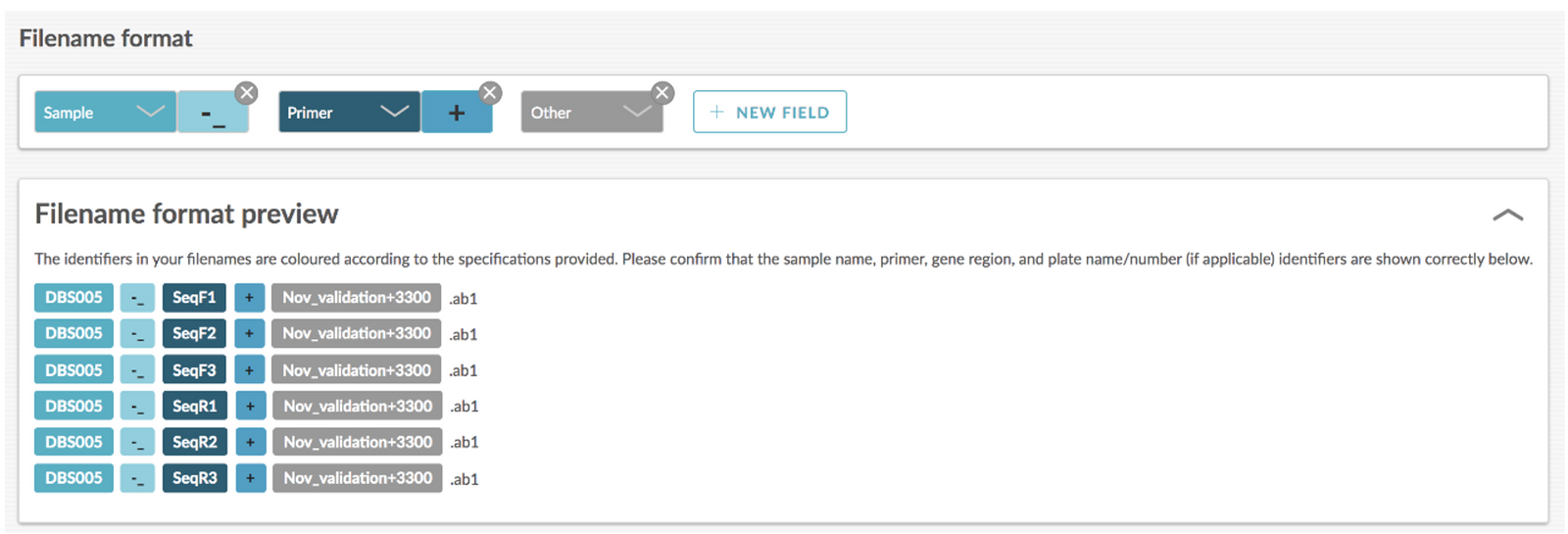
Sample-_Primer+Other
Six protease-reverse transcriptase (PRRT) region amplicons:
- DBS005
-_SeqF1+Nov_validation+3300.ab1 - DBS005
-_SeqF2+Nov_validation+3300.ab1 - DBS005
-_SeqF3+Nov_validation+3300.ab1 - DBS005
-_SeqR1+Nov_validation+3300.ab1 - DBS005
-_SeqR2+Nov_validation+3300.ab1 - DBS005
-_SeqR3+Nov_validation+3300.ab1
Where:
- Sample: DBS005
- Primer: SeqF1, SeqF2, SeqF3, SeqR1, SeqR2, SeqR3 for protease-reverse transcriptase
- Other: Nov_validating+3300
- Delimiters:
-_(hyphen underscore), and+(plus).
What are positive and negative controls?
Negative control
Flagged as problematic if any sequencing data is present for that sample.
Positive control
Flagged as problematic if specific mutations/features that are known to be in the positive control are not present.
Which HIV reference sequence does Exatype use?
Similarly to the Stanford HIV Drug Resistance Database, Exatype uses the consensus subtype B pol (2004) reference obtained from the LANL database.
What drug resistance algorithm does Exatype use?
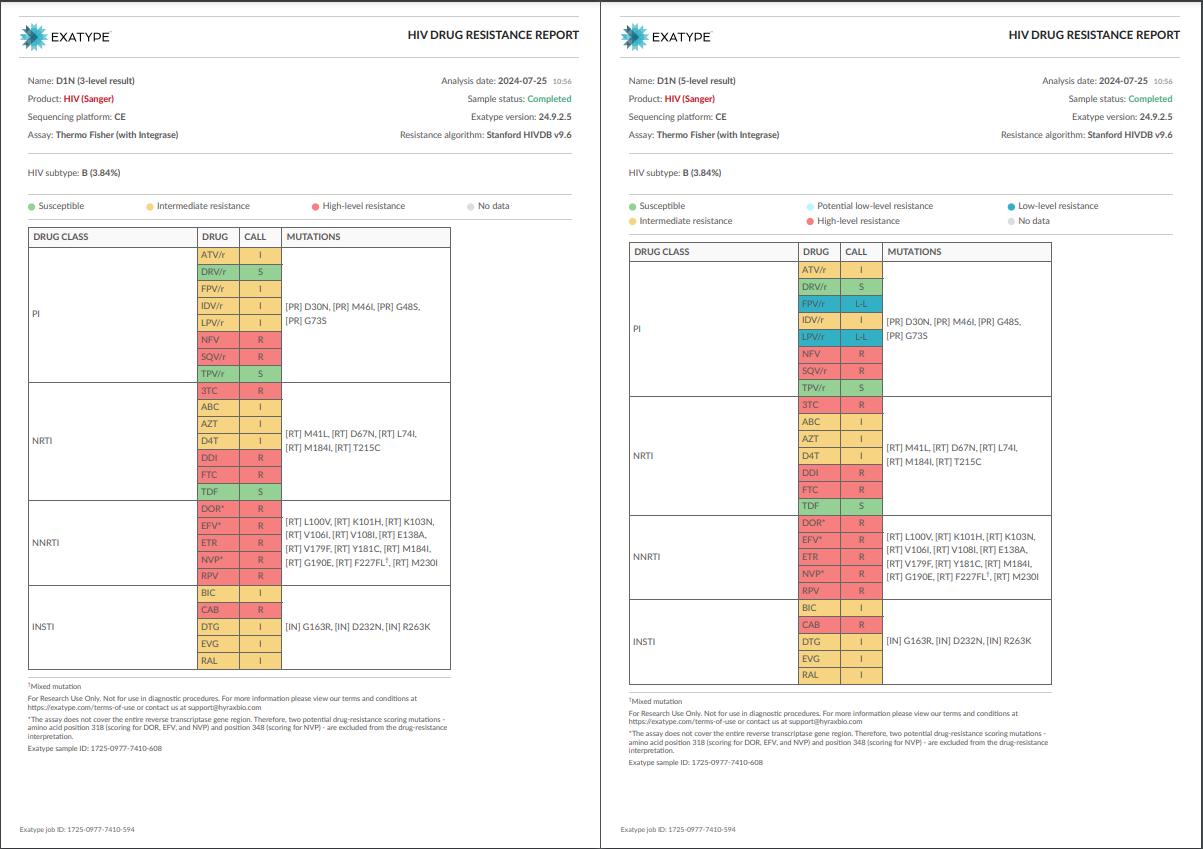
The Stanford HIV Drug Resistance Database is a curated, public database of all known HIV drug-resistance mutations. The Stanford HIV Drug Resistance Algorithm combines the mutation information with resistance scores, where the scores reflect the contribution of each mutation to the level of resistance to a specific drug. The score for each drug-resistance mutation spanning a particular gene sequence (either reverse transcriptase, protease or integrase) is combined to determine the final level of resistance to a drug. Exatype reports a three-level and five-level scoring of resistance, corresponding to:
Three-level score presents the well-known traffic light scoring system:
- Resistant (R) (Score >= 60; High-level resistance)
- Intermediate resistance (I) (Score >= 15 and < 60; Low-level & Intermediate resistance)
- Susceptible (S) (Score < 15; Susceptible & Potential low-level resistance)
Five-level score commonly used by Stanford, corresponds to:
- Susceptible: Total score 0 to 9
- Potential low-level resistance: Total score 10 to 14
- Low-level resistance: Total score 15 to 29
- Intermediate resistance: Total score 30 to 59
- High-level resistance: Total score >= 60
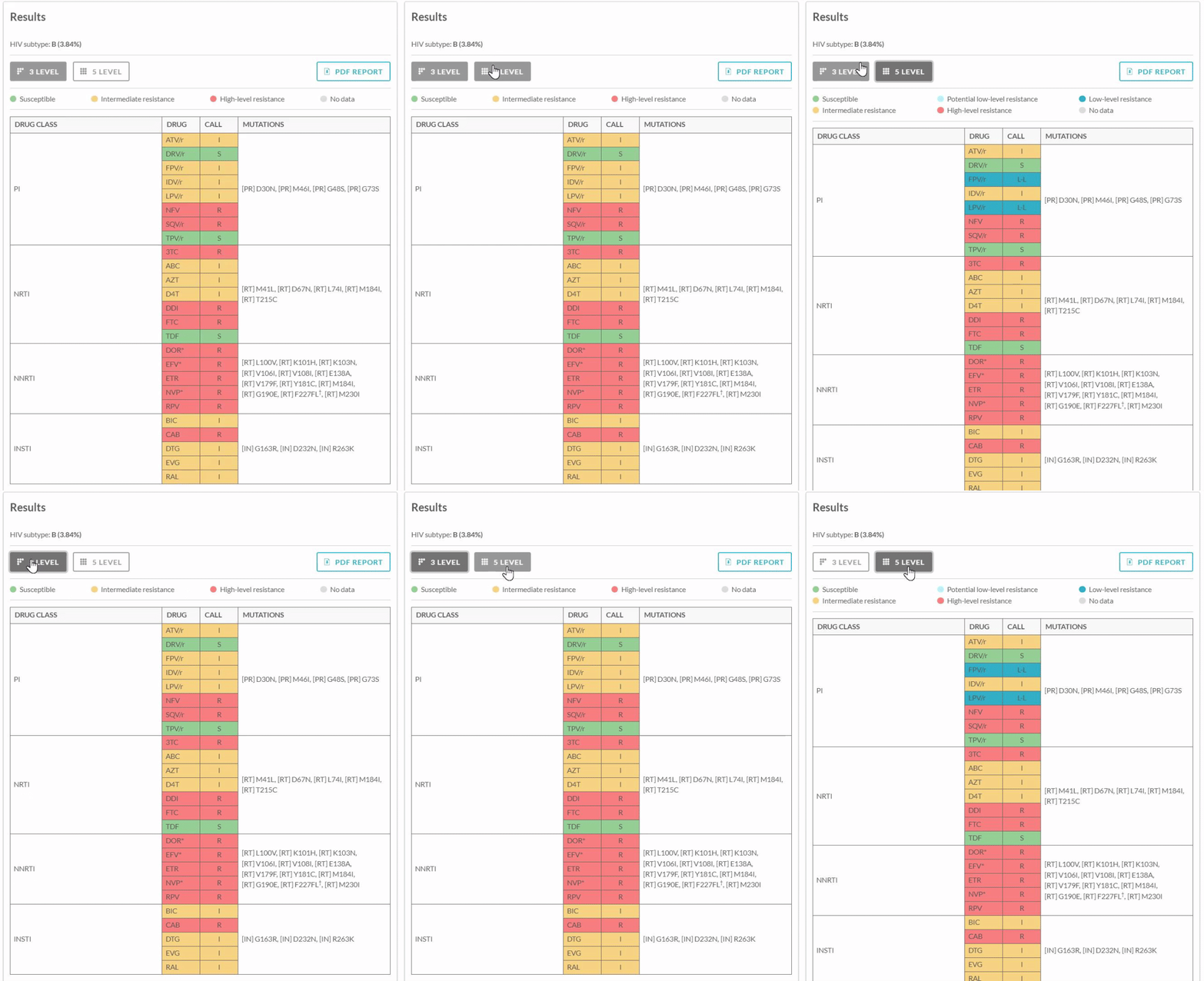
Information on the Stanford classification can be found here.
If you have any questions, please get in touch via support@hyraxbio.com
How does Exatype use and maintain resistance interpretation databases?
Exatype uses the Stanford HIVDB drug-resistance interpretation algorithm and is maintained to remain consistent with the current Stanford release under Hyrax’s change-control and verification processes.
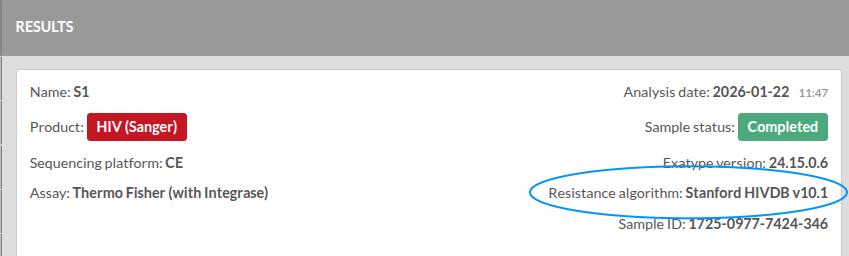
Implemented version transparency
The Stanford HIVDB algorithm/version reference used for interpretation is displayed in the Exatype user interface and/or included in the downloaded HIV drug-resistance report for each analysis, providing traceability of the interpretation reference applied to that result set.
Historical analyses
Drug-resistance interpretations are generated using the Stanford HIVDB release available and implemented at the time the analysis was performed. As the Stanford HIVDB algorithm is periodically updated, analyses performed at different times may reflect different Stanford releases; reports retain the version reference applicable to that analysis for auditability and regulatory documentation.
What HIV subtyping information is provided as part of the Exatype platform?
The Stanford HIVdb subtyping program (https://hivdb.stanford.edu/page/hiv-subtyper/) is used to assign a subtype to a sample based on its pol sequence, compared to a set of subtype-specific reference sequences.
The HIV subtype and distance percentage for the closest matching reference sequence is displayed above the HIVDR report (both on the web-result display and PDF download). As with the Stanford HIVdb drug-resistance results pages, a list of the top 10 matching subtype reference sequences is also provided. These can be found in the Phylogenetic summary below the drug resistance results in the web-result display and PDF download, or as a comma-separated values/csv file, under Downloads.
Why is the HIV subtype shown as “unknown”?
If the distance to the closest matching reference sequence is greater than 11% the subtype is reported as Unknown*. For more information on the reporting of different subtypes and circulating recombinant forms (CRFs), please visit https://hivdb.stanford.edu/page/hiv-subtyper/.
*Subtyping was implemented on Exatype for all HIV products on 25 July 2024. Samples run prior to this date will show a subtype of “Unknown”.
What information is shown on the View jobs page?
Once all the files from a job have been processed, further information will be available on the View jobs page, including the Job name, Date on which the file processing was started, further Info provided by the user at initiation of the job, the job Status, a summary of the analysis under Samples overview, the Platform and type of Assay run, and a link to the sample-specific Analysis (results).
What do the Status entries mean?
Your Exatype job will reflect one of the following status entries under the Status column:
- Pending: Processing is underway.
- Completed: The Exatype analysis is complete and no manual review of any samples is required. Please note: while the status of a plate can be flagged as complete, this does not mean that a drug-resistance report was produced for all samples on that plate. It means that the analysis of all of the samples on the plate is complete and that no remaining samples require manual review.
- Action required: One or more sample chromatogram/s require manual review. If the chromatograms are passed by the reviewer, a drug-resistance report will be generated. However, if the reviewer fails a sample(s), no report will be available for the failed sample(s). Once all sample chromatograms have been reviewed, the Status will change to completed.
- Error: Exatype encountered a processing error during the analysis of the job. Please note: samples that are not processed due to an error are not counted against the total samples run by your organisation.
What is shown under the Samples overview?
This column provides an overview of the status of all the samples included in your job. The numbers of Completed, Failed and Action required samples are shown. Processing indicates the number of samples that are being processed, Pending for samples that have been queued for processing, and Error indicates that there was a problem with the processing.
What do I do when my analysis has completed/says action required?
Each sample will be labelled as either Completed, Failed, or Action required, which are described individually below.
Completed
The sequences of this sample passed the chromatogram checks and a consensus sequence generated; this consensus sequence will be processed and a drug-resistance report generated.
Failed
The sequences pertaining to that sample were either incomplete or of insufficient quality to be analysed, and no drug-resistance report will be generated for that sample.
Action required
The sequence chromatogram contained inconclusive DNA base calling/interpretation that requires manual review and editing. The end-user is required to view and edit the chromatogram and make a decision on the eventual outcome of the chromatogram. Available actions are:
- Save: the user is saving edits, but has not yet decided to pass or fail the chromatogram.
- Save & Pass: the user is satisfied with their review and edits (if any) of the chromatogram.
- Fail Sample: the user is not satisfied with the quality of the sequence data for that sample.
How do I view and edit chromatograms?
RECall, software from the University of British Columbia, is implemented as part of the workflow for you to interpret and analyse chromatograms. Publication: https://www.ncbi.nlm.nih.gov/pmc/articles/PMC3372133/, Wiki: https://recall.bccfe.ca/wiki).
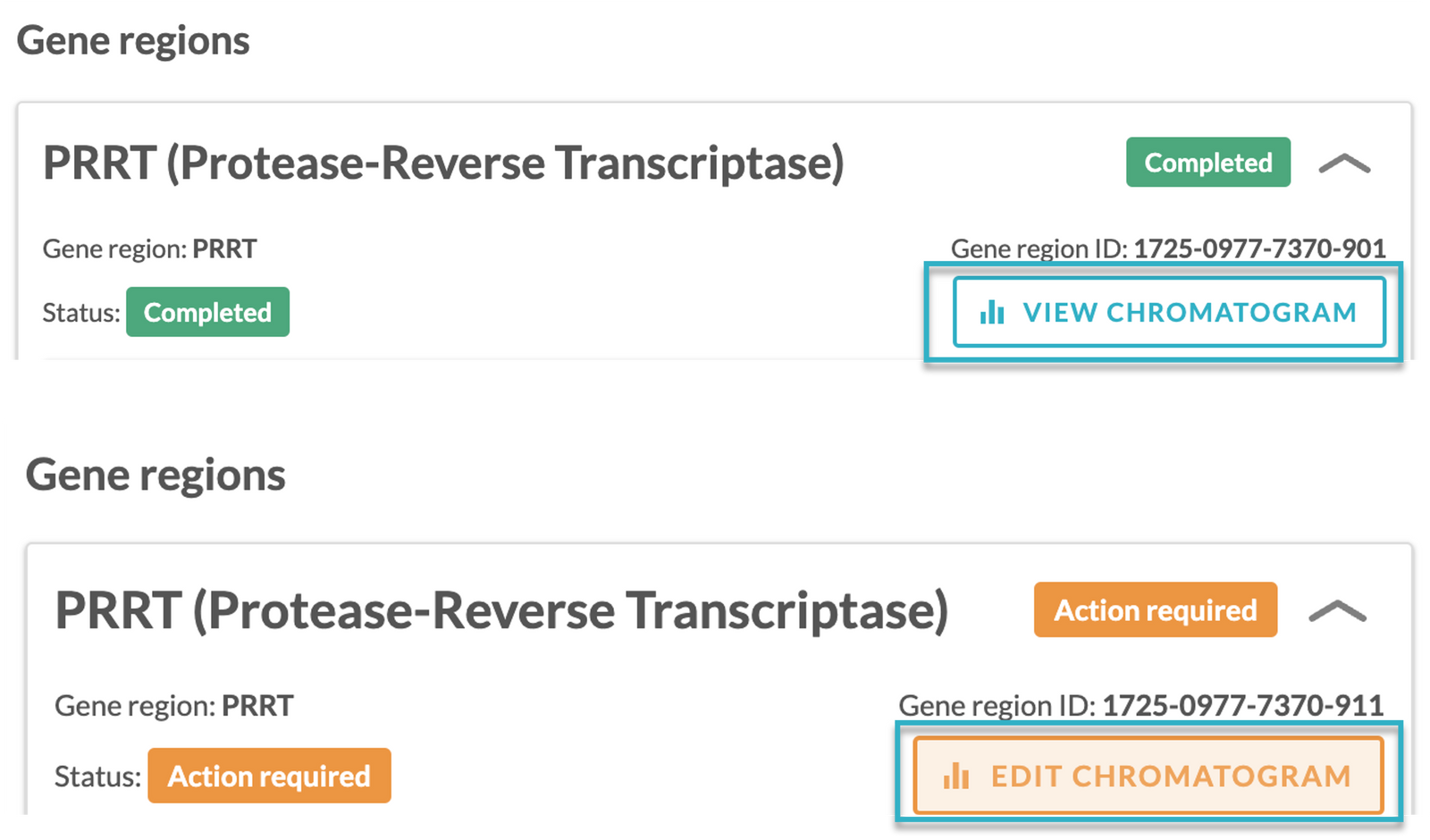
Within the Sample-specific results section (View jobs page), under Gene regions, a user is able to select VIEW CHROMATOGRAM or EDIT CHROMATOGRAM (if Action required for the sample), see images below.
Upon selecting the VIEW/EDIT CHROMATOGRAM the user will be taken to a chromatogram page. To visualise where the amplified regions are located in relation to the reference, click OPEN MAP.
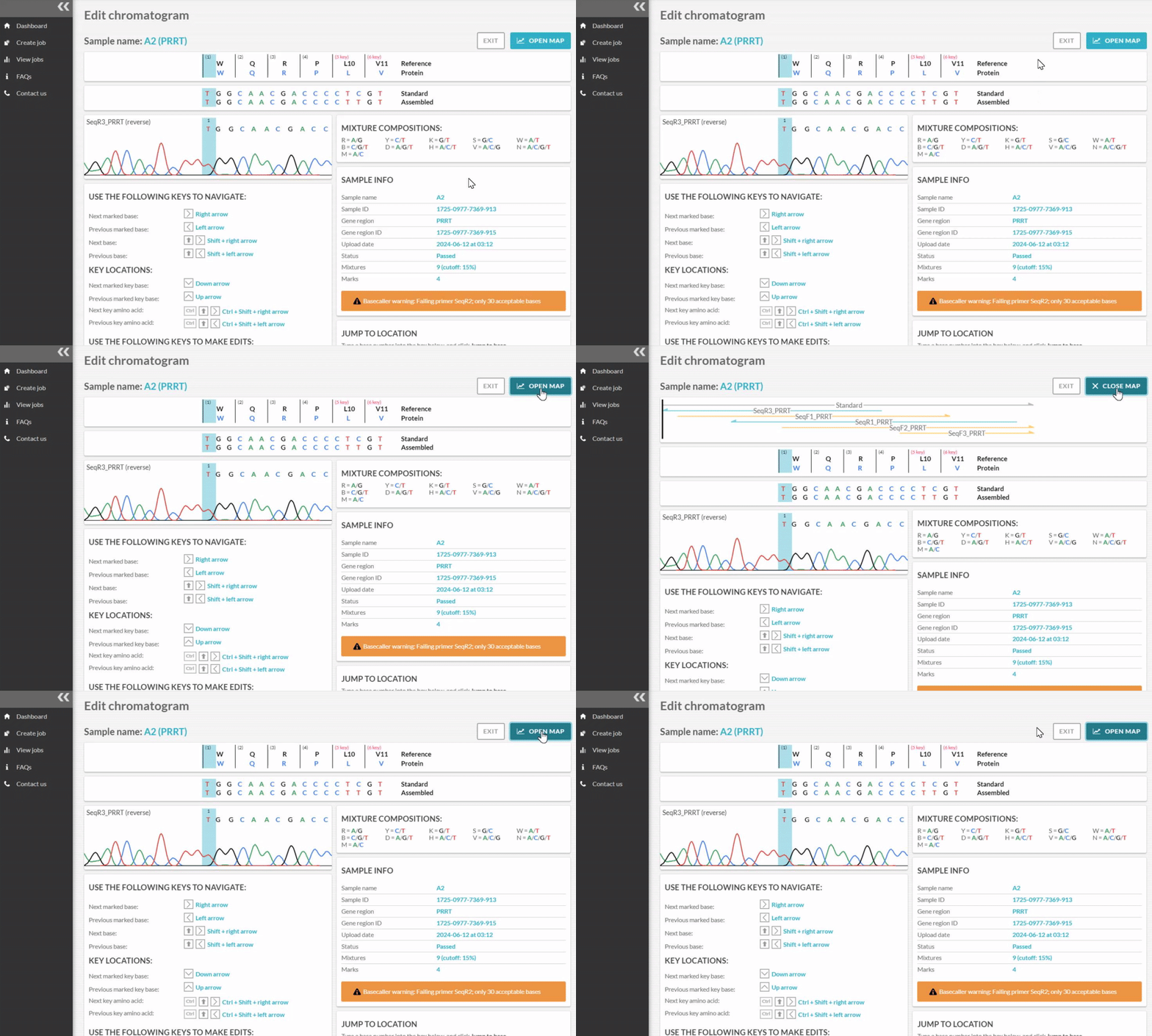
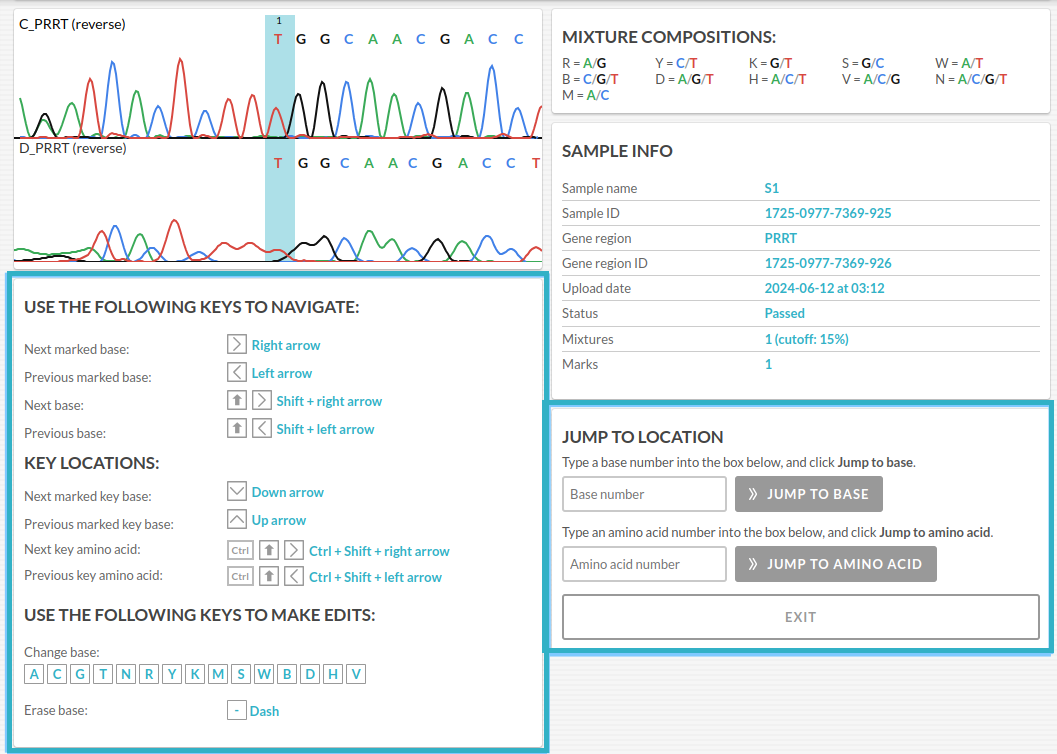
The user can then navigate across the chromatogram using different keys outlined underneath the chromatogram, make edits (if appropriate), and/or jump to different locations within the chromatogram shown below:
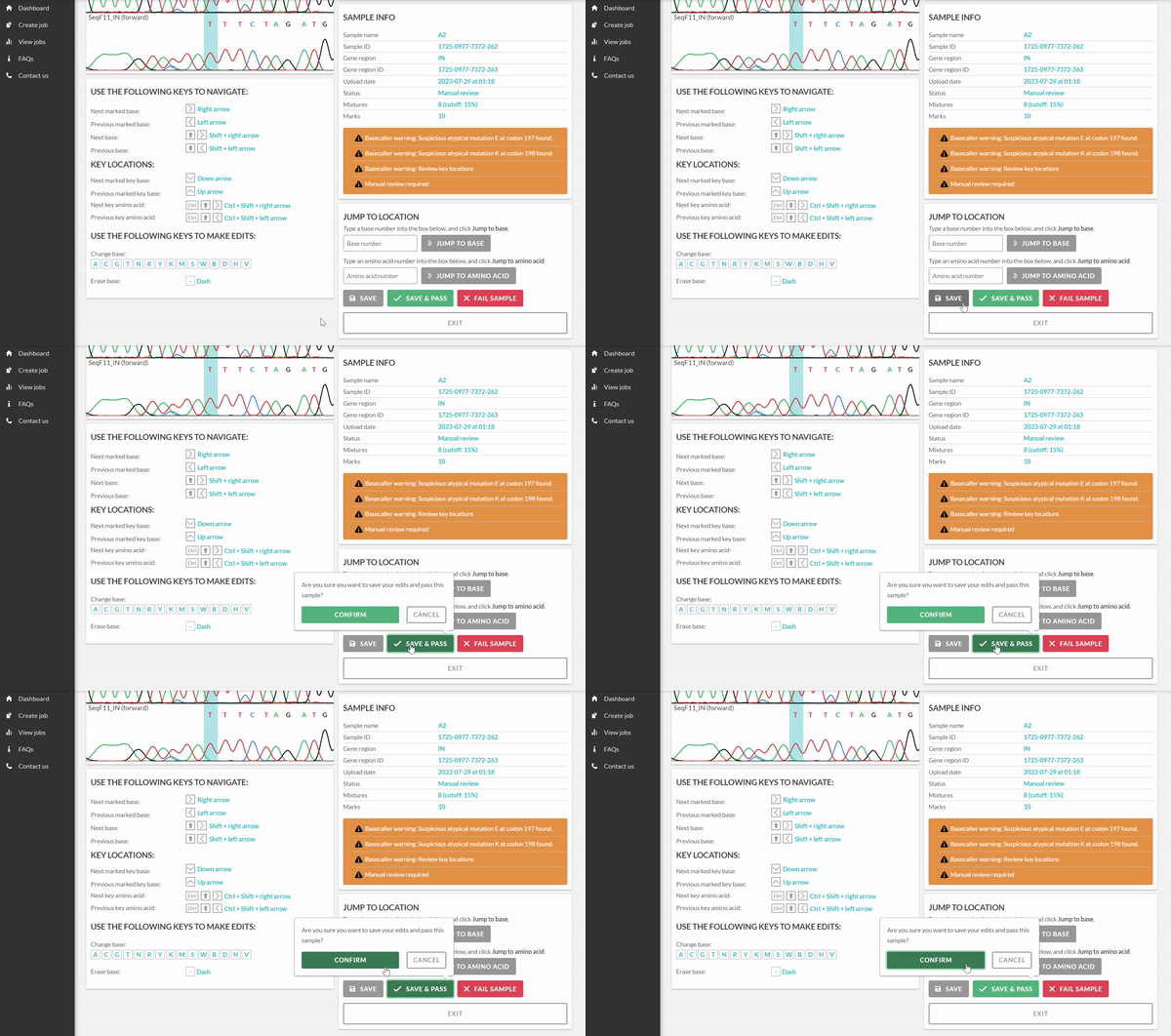
After reviewing the chromatogram, and making edits where applicable, you can either SAVE, SAVE & PASS, or FAIL SAMPLE to complete the manual review. In this example, we will click SAVE & PASS.
Please see Exatype: HIV (Sanger): User Manual for more details on editing chromatograms.
How does Exatype show deletions in the chromatograms?
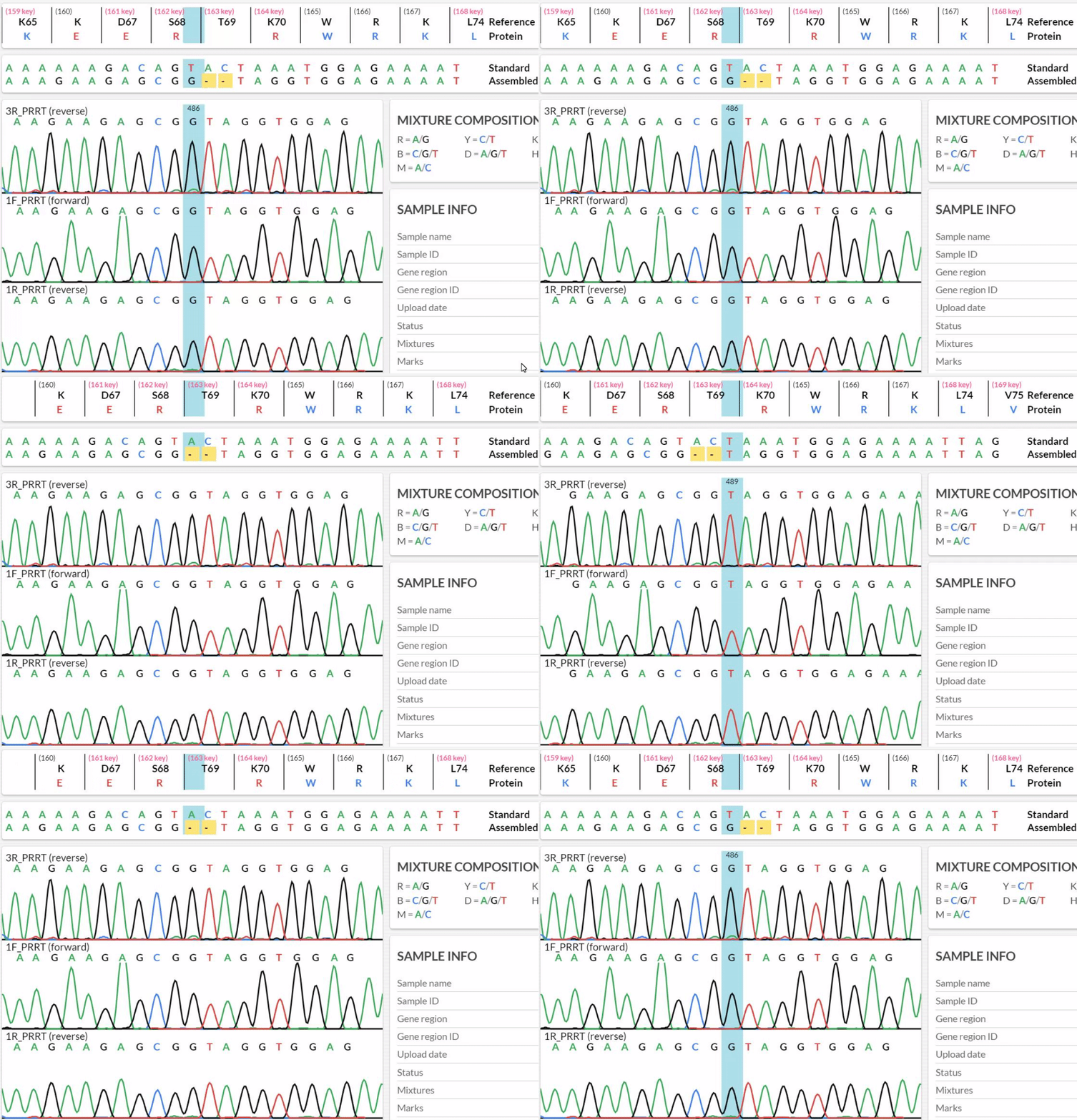
A deletion is indicated, within the “Assembled” sequence shown above the chromatogram, by a single or multiple yellow block(s) with a “-” in the middle of it, representing a single or multiple nucleotide deletion(s).
The chromatogram(s) themselves, representative of the Sanger sequencing process, will not show any gaps. Prior to a deletion the chromatogram peaks, shown below the aligned sequence, will match up to the position of the aligned nucleotide and are highlighted by a blue bar running vertically across the alignment and chromatogram (see gif below). At a deletion, however, the deleted positions don’t line up with the chromatogram and the blue bar will not be able to highlight a position in the chromatogram. Directly after the deletion, the chromatogram and aligned positions will continue to line up.
As shown below, you can see the G (black) peak at position 486 (Amino acid 68), is right next to the T (red) peak at 489 (amino acid 69), with a deletion in between at positions 487-488.
Can you explain more about the chromatograms?
A chromatogram is a wave like graph where each wave is coloured according to a specific nucleotide (adenine - green, cytosine - blue, guanine - black and thymine - red), the height of the waves represent the relative concentration of that nucleotide. For more information please refer to the Sample Viewer page in the RECall wiki.
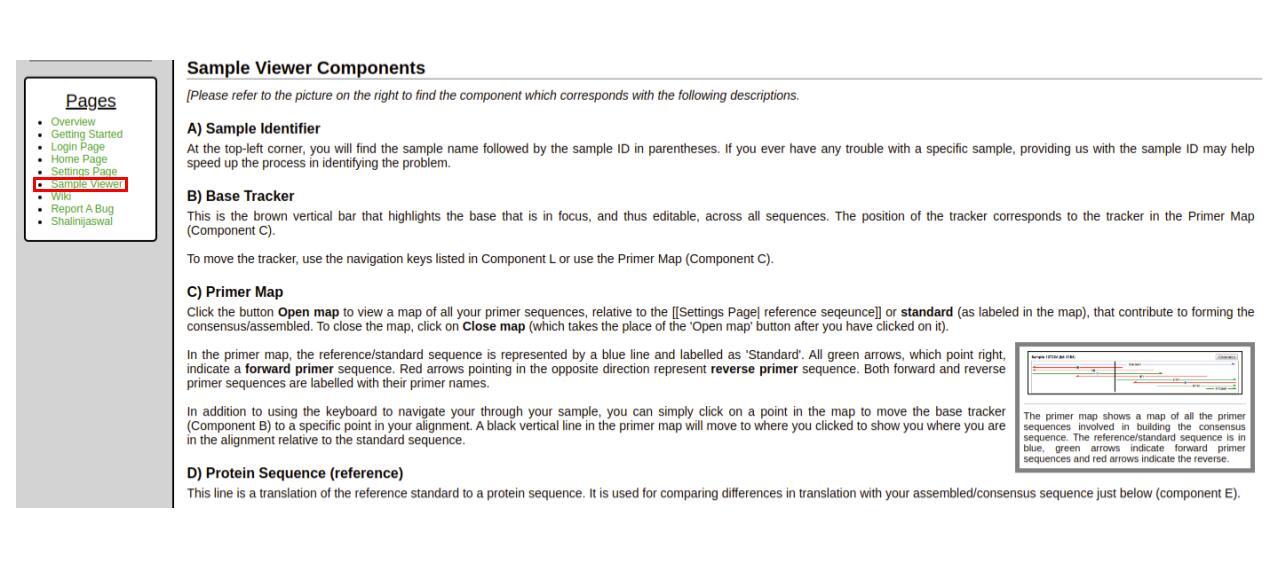
Or Annex 2, subsection A (page 29) of the WHO operational framework for sample processing.
How are mixtures called?
A mixture is a position where two or more nucleotides are observed.
The RECall publication (doi: 10.1128/JCM.06689-11) explains how mixtures are called:
“RECall identifies mixtures based on the quality and area under the curve of the called and uncalled bases as determined by phred.”
For Exatype, the RECall mixture cutoff is set to 20% (as per the specification in the WHO ResNet labs study: https://www.mdpi.com/1999-4915/12/7/694). This means that the area of the uncalled peak must be at least 20% of the called peak area. If >50% of the reads pass this threshold, then a mixture is called.
This is further described in the RECall wiki: https://recall.bccfe.ca/wiki .
Navigate to the Settings Page and scroll down to Super User; under the Reference Sequences heading, point “E”:
“E) Mixture cutoff - RECall determines whether or not a mixture (or ambiguous base) is called based on the percent of overlap between two chromatogram peaks. RECall does not call mixtures that are composed of more than two bases. This field is used to define that percentage that RECall will use to determine mixtures. So if you define the mixture cutoff to be 20%, a mixture will only be called if the smaller of two overlapping peaks covers at least 20% of the larger peak.”
What results are available under View the Analysis of my job?
When you select to view the analysis for a job, you will see an Overview of the analysis, Quality control results, Sample-specific results, and Downloads.
Overview
Provides a high-level overview of the job including the name, date created and status (Completed or Action required).
Quality control
The quality control overview shows information on the positive and negative sequencing controls (Absent, Passed, or Failed), as well as warnings that flag possible contamination or unusual mutations.
Contamination checks:
The genetic difference between a pair of sequences is calculated by counting the number of nucleotide differences at each position along the sequence. Due to the presence of mixtures (e.g. R = A/G), there are two ways to determine the number of nucleotide differences: compatible and non-compatible nucleotide differences.
Compatible nucleotide differences: two nucleotide sites are different if the single nucleotides are different (e.g. A vs T), or if there is no overlap in nucleotides when comparing mixtures, e.g M (A/C) vs K (G/T), or if there is any difference among the nucleotides within a mixture, e.g. A vs N (A/C/G/T), or A vs M (A/C).
Non-compatible nucleotide differences: two nucleotide sites are different if the single nucleotides are different (e.g. A vs T), or if there is no overlap in nucleotides when comparing mixtures, e.g M (A/C) vs K (G/T).
The genetic distance is calculated by dividing the number of differences (compatible and non-compatible) by the total sequence length.
Three genetic distance calculations are carried out to determine similarity to the positive control, selected lab strains and other samples from the same job.
Samples too similar to positive control: The genetic distance between the listed sample(s) and the positive control is less than 0.5%.
Samples too similar to selected lab strains: The genetic distance between the listed sample(s) and one or more of the lab strains is less than 0.5%. The lab strains included are HXB2 (K03455) and NL4-3 (AF324493) for subtype B, and MJ-4 (AF321523) for subtype C.
Samples too similar to other samples from this job: The genetic distance between the listed sample(s) and one or more samples analysed in the same job is less than 0.5%.
Unusual mutation checks:
Samples with excess APOBEC mutations
The listed sample has four (or more) APOBEC mutations where at least one of these mutations is at a drug resistance site. An excess of APOBEC mutations may indicate replication-incompetent virus.
The list of APOBEC mutations (at DRM and non-DRM positions) can be found at:
https://github.com/hivdb/hivfacts/blob/main/data/apobecs/apobecs.csv
https://github.com/hivdb/hivfacts/blob/main/data/apobecs/apobec_drms.csv
Samples with excess atypical mutations
The listed sample has three (or more) atypical mutations in protease, and/or five (or more) atypical mutations in reverse transcriptase, and/or four (or more) atypical mutations in integrase.
Atypical mutations are defined based on the Stanford HIVDR database hivfacts package: github.com/hivdb/hivfacts/blob/master/data/aapcnt/rx-all_subtype-all.json where amino acids flagged as unusual (“isUnusual”:true), are included as unusual mutations.
Note: A mutation may be flagged as both APOBEC and atypical.
Sample-specific results
This section lists all the samples included on the plate. Samples that have passed are highlighted in green, samples where one gene region passed and the other gene region failed are highlighted in green with an asterisk (star *) to indicate that the results are discordant for that sample, samples that failed are highlighted in red, and the samples where manual review is required are shown in orange.
If the sample passed, sample warnings (if any) and a drug-resistance report are shown and can be downloaded as a PDF report.
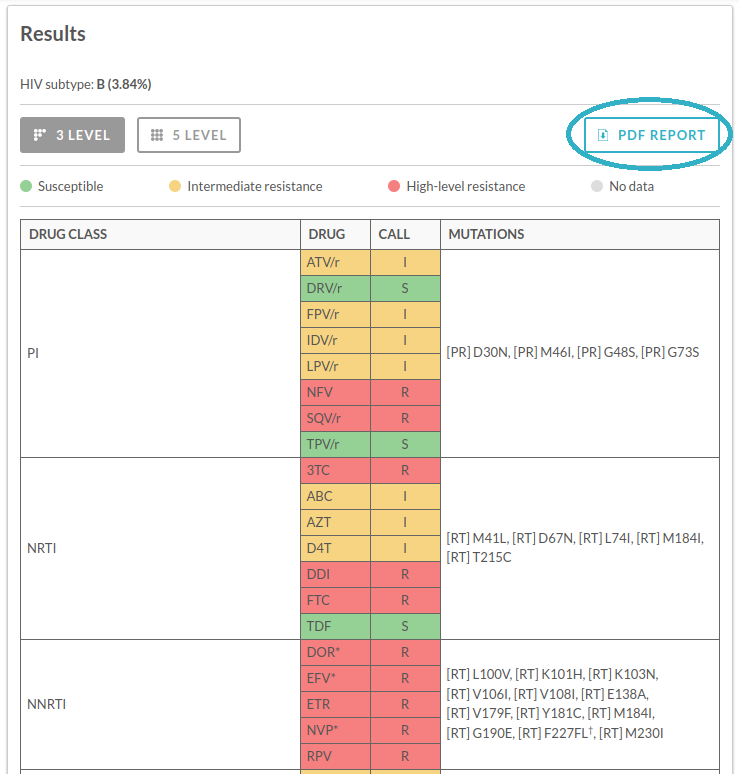
For failed samples, the warnings and errors are listed and no drug-resistance report is available. The option to VIEW CHROMATOGRAM is shown for all passed and failed gene regions. Where Manual review is required, the Report page will show an EDIT CHROMATOGRAM button that links to the chromatogram viewer. At present, the chromatograms for failed and passed samples are not editable.
The sample-specific drug-resistance reports provides a document outlining the drug classes, antiretroviral drugs, the resistance call for each drug, as well as the mutations that contributed to the particular call for that drug for both the 3- and 5-level reports.
Downloads
The files available for download are outlined below.
Consensus Sequences:
- Each sample sequence in an individual FASTA file (zip download).
- Single file (FASTA format) with each passed sample (PRRT and IN separately).
- Single file (FASTA format) with each passed sample provided as a concatenated FASTA sequence (PRRT and IN as a single FASTA sequence, with N’s replacing the unsequenced region of pol between PRRT and IN).
Mutations:
- Summary file of all observed mutations (csv format) with sample names, gene region, wild-type, variant, and variant tags (including whether a mixture is observed and whether the mutation is at a drug resistance position).
Phylogenetics:
- The top ten closest matched subtype information, including subtype, distance percentages, reference accession number, reference country and reference year, for each sample provided as a single zipped file.
Summary:
- Summary file (tsv format) with: sequence, resistance, drug, and quality control information.
Have you published papers detailing the tools used?
We have developed unique tools to distinguish between true biological diversity and sequencing error in high-throughput sequencing reads. These have been tested exhaustively and published in peer reviewed journals.
Published articles detailing these tools:
QTrim - https://bmcbioinformatics.biomedcentral.com/articles/10.1186/1471-2105-15-33
Examap - http://nar.oxfordjournals.org/content/42/13/e106
Note - The Examap publication (then called RAMICS) was an early version of the sequence mapping tool and was developed in 2012/2013. Examap reflects substantial changes and improvements to the underlying algorithms and, therefore, we do not recommend the use of RAMICS for mutation calling in sequence data. If you are interested in analysing your data using Examap please contact us.
What is Exatype’s data retention policy?
At present*, Exatype does not automatically delete your jobs after a set period of time, and there is no limit on the number of jobs you can run, nor the number of samples within a job. However, Exatype is not intended to be used as a long-term storage system for your sequence data or results. We strongly recommend that you maintain your own secure backups of all sequence files and important analysis results to ensure ongoing access to your data.
*Note: If our data retention policies change in the future, users will be notified in advance to allow adequate time for managing and backing up their data.
Do you have access to patient specific information from the data I upload through the website?
We do not store any patient information in our databases. You should ensure that sample naming in the sample sheet file uploaded is in de-identified format, i.e. a format that is not capable of being attributed to any individual.
How do I know the data I upload is safe?
Your files are encrypted from the moment you click the upload button, and all processing is performed on a secure, cloud-based server. Your results are also encrypted at rest. You should not treat the Exatype service as a sole backup for your results. Furthermore, your password security is your responsibility. Please contact us if you believe your account has been compromised.
Queries on supporting customised protocols?
Please contact us at commercial@hyraxbio.com to discuss further needs.
Research Use Only (RUO)
For Research Use Only. Not for use in diagnostic procedures. Please see our terms of use for further information.